Windows Subsystem for Linux (WSL) allows you to run one or more Linux distributions on Windows. Like any operating system, it requires regular security updates. Instead of updating it manually, let's automate the process using the Windows Task Scheduler!
Open PowerShell and run the following commands to create a scheduled task that updates the default WSL distribution once a week.
PowerShell
# https://learn.microsoft.com/en-us/powershell/module/scheduledtasks/new-scheduledtasktrigger?WT.mc_id=DT-MVP-5003978
$Time = New-ScheduledTaskTrigger -At 12:00 -Weekly -WeeksInterval 1 -DaysOfWeek Monday

# https://learn.microsoft.com/en-us/powershell/module/scheduledtasks/new-scheduledtaskaction?WT.mc_id=DT-MVP-5003978
# If you want to update a specific distro, you can add "--distribution <DistributionName>"
$Actions = @(
    New-ScheduledTaskAction -Execute "wsl" -Argument "--user root --exec apt-get update"
    New-ScheduledTaskAction -Execute "wsl" -Argument "--user root --exec apt-get upgrade --yes"
)

# https://learn.microsoft.com/en-us/powershell/module/scheduledtasks/new-scheduledtasksettingsset?WT.mc_id=DT-MVP-5003978
$Settings = New-ScheduledTaskSettingsSet -WakeToRun:$false `
                                         -MultipleInstances IgnoreNew `
                                         -RunOnlyIfNetworkAvailable:$true `
                                         -StartWhenAvailable:$true

# https://learn.microsoft.com/en-us/powershell/module/scheduledtasks/register-scheduledtask?WT.mc_id=DT-MVP-5003978
Register-ScheduledTask -TaskName "Update wsl" -Trigger $Time -Action $Actions -Settings $Settings -TaskPath Updates
If everything went well, you should see the new task in Task Scheduler:
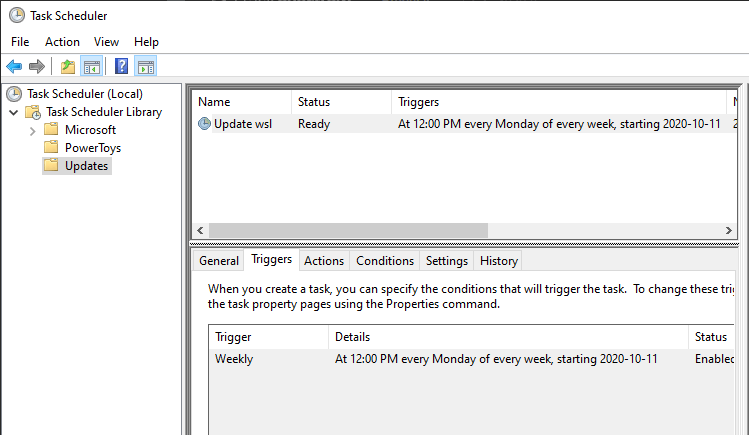
You can run the task manually to verify it works correctly. It may take a few minutes if the distribution has never been updated.
Do you have a question or a suggestion about this post? Contact me!
