In the previous posts on Blazor, we have seen how to create a component and define parameters. For instance, you can check the posts about the Modal component, the Repeater component, or the Enum Select component.
Sometimes, you want to allow consumers of your component to pass arbitrary attributes. For instance, you may want users to add validation attributes (required, maxlength, etc.) to an input element, or to set the id attribute. Blazor lets you capture these additional attributes in a dictionary and then splat them onto an element when the component renders, using the @attributes Razor directive.
Add a parameter decorated with [Parameter(CaptureUnmatchedValues = true)] whose type is assignable from Dictionary<string, object>. Supported types include Dictionary<string, object>, IDictionary<string, object>, and IReadOnlyDictionary<string, object>.
Then apply all captured attributes to an element with @attributes="Parameter". This renders one HTML attribute per dictionary entry (KeyValuePair<string, object>), using the Key as the attribute name and the Value as the attribute value.
Let's create the component:
Razor
@* 👇 @attributes will be expanded with all unmatched parameters *@
<input @attributes="AdditionalAttributes" list="@listId" />
<datalist id="@listId">
    @foreach (var option in Options)
    {
        <option>@option</option>
    }
</datalist>

@code {
    private string listId = Guid.NewGuid().ToString();

    [Parameter]
    public IEnumerable<string> Options { get; set; }

    // 👇 Capture all attributes that doesn't match a parameter
    // Key (string): attribute name
    // Value (object): value of the attribute
    [Parameter(CaptureUnmatchedValues = true)]
    public IReadOnlyDictionary<string, object> AdditionalAttributes { get; set; }
}
You can use this component as follows:
Razor
@* 👇 required and minLength don't match a parameter, so they'll be added to AdditionalAttributes *@
<SelectComponent required minLength="2" Options='new[] { "aa", "bb", "cc" }' />
Here's the generated DOM:
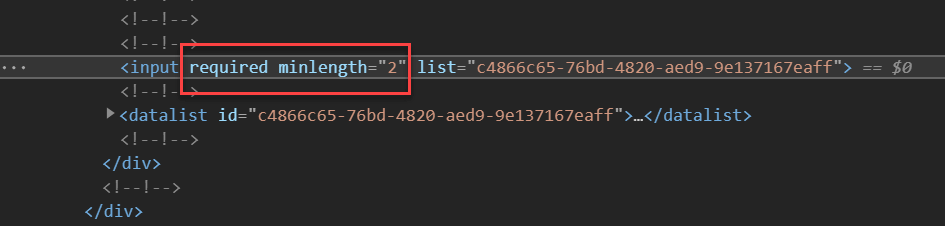
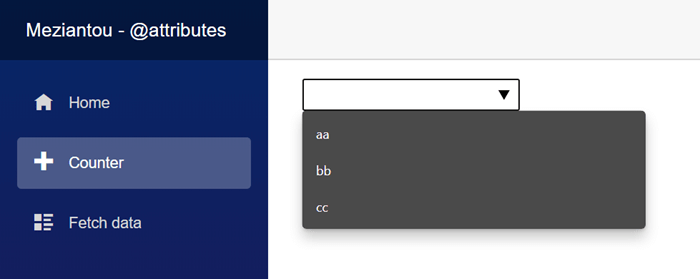
Here's the visual result:
#The position of @attributes is important
The position of @attributes can affect the generated DOM. Attributes are evaluated from left to right, and if two attributes share the same name, the last one wins and overwrites the previous one. Let's consider these 2 examples:
Razor
@* 👇 "list" is before @attributes *@
<input list="@listId" @attributes="AdditionalAttributes" />

@* 👇 @attributes is before "list" *@
<input @attributes="AdditionalAttributes" list="@listId" />
Let's use it with the following code:
Razor
@* Set the "list" attribute *@
<SelectComponent list="abc" Options='new[] { "aa", "bb", "cc" }' />
Here's the generated code for both cases:
HTML
<!-- 👉 <input list="@listId" @attributes="AdditionalAttributes" /> -->
<!-- The Guid is overrided by the value provided by the parent -->
<input list="abc">

<!-- 👉 <input @attributes="AdditionalAttributes" list="@listId" /> -->
<!-- The value provided by the parent is not used -->
<input list="52880b4c-02c9-4ddd-8752-34dd35b16ba4">
So, if you want the parent to be able to overwrite an attribute defined by the component, place @attributes on the right.
Razor
@* The "list" attribute **can be replaced** if AdditionalAttributes contains an attribute named "list" *@
<input list="@listId" @attributes="AdditionalAttributes" />

@* The "list" attribute **cannot be replaced** if AdditionalAttributes contains an attribute named "list" *@
<input @attributes="AdditionalAttributes" list="@listId" />
Do you have a question or a suggestion about this post? Contact me!
