In the previous post, I showed you how to use Visual Studio to compare 2 files. Visual Studio Code is another great option, and like any capable IDE, it includes a powerful built-in diff tool. Like Visual Studio, you can use it to compare two versions of the same file when using source control, or compare any two files from your file system.
This post covers multiple ways to use the Visual Studio Code diff tool.
#Comparing files using the User Interface
Open the 2 files in Visual Studio Code
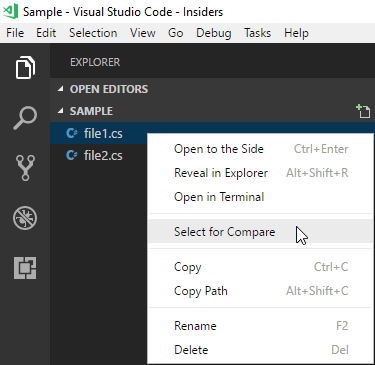
Right-click on one file and click "Select for compare"
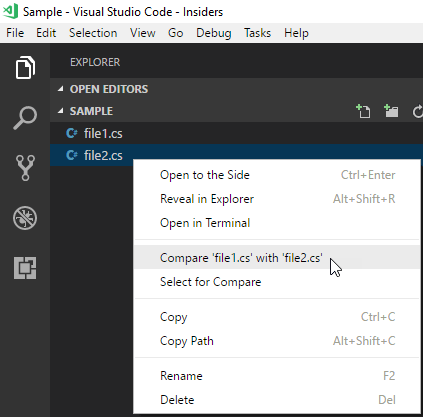
Right-click on the other file and click "Compare file file1 with file2"
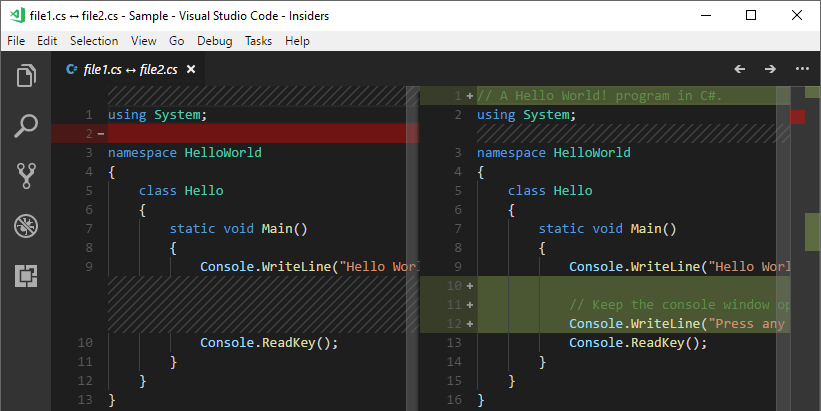
You should see the result:
#Comparing files using the command line
Using Visual Studio Code
Shell
code --diff file1.cs file2.cs
Or, using the full path if code is not in the PATH:
Shell
"%LOCALAPPDATA%\Programs\Microsoft VS Code\code.exe" --diff file1.cs file2.cs
Using Visual Studio Code Insiders
Shell
"%LOCALAPPDATA%\Programs\Microsoft VS Code Insiders\Code - Insiders.exe" --diff file1.cs file2.cs
#Using Visual Studio Code as a git difftool
git difftool is a Git command that allows you to compare and edit files between revisions using common diff tools. You can use any editor that supports diff such as VS Code. Open a command prompt and use the following commands:
From CMD (Windows)
Shell
git config --global diff.tool vscode
git config --global difftool.vscode.cmd "code --wait --diff \"$LOCAL\" \"$REMOTE\""
From PowerShell (Windows or Linux)
PowerShell
git config --global diff.tool vscode
git config --global difftool.vscode.cmd "code --wait --diff ""`$LOCAL"" ""`$REMOTE"""
From Bash (Linux)
PowerShell
git config --global diff.tool vscode
git config --global difftool.vscode.cmd 'code --wait --diff "$LOCAL" "$REMOTE"'
Manually, open ~/.gitconfig or %USERPROFILE%\.gitconfig in a text editor and add the following content:
INI
[diff]
    tool = vscode
[difftool "vscode"]
    cmd = code --wait --diff \"$LOCAL\" \"$REMOTE\"
You can verify the configuration by running git config --global --list.
You can also configure Visual Studio Code as your Git editor:
Shell
git config --global core.editor "code --wait"
Do you have a question or a suggestion about this post? Contact me!
