If you store music as FLAC and own an iPhone or iPad, you may have noticed the Music app cannot play these files natively. Apple uses its own format, ALAC, to store music. To play your files on an Apple device, you need to convert from FLAC to ALAC. I could not find a good free guide online, so I wrote my own.

#What are FLAC and ALAC?
FLAC (Free Lossless Audio Codec) is a free lossless audio format that compresses audio to roughly 50-60% of its original size without any quality loss. It is widely supported by Hi-Fi systems and audiophiles.
ALAC (Apple Lossless Audio Codec) is an audio compression format developed by Apple for lossless storage of digital music. Initially proprietary since its 2004 release, Apple made it open-source and royalty-free in late 2011.
Both formats use lossless compression, so you can convert between them without any data loss. They are simply different ways to store the same audio.
#Method 1: Using Foobar2000
If you use foobar2000, download the Free Encoder Pack and convert your files directly from within foobar2000.
Select the files you want to convert

Select the output format
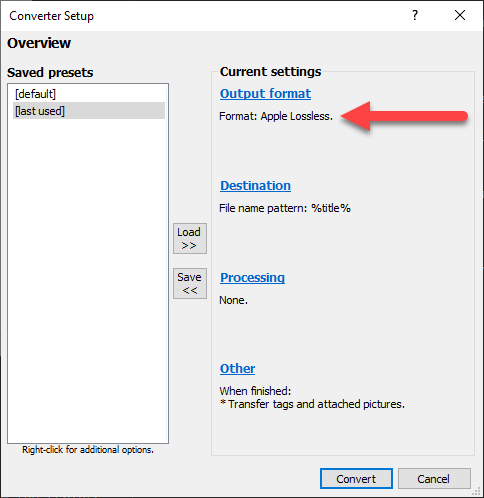
Click the "convert" button and select the destination folder
#Method 2: Works on Windows, Linux and Mac
Before going into the conversion scripts, you need to download the following tools:
- PowerShell Core
- flac
- ffmpeg
Place flac.exe and ffmpeg.exe in a folder, for example C:\tools\, so they are easy to reference from the scripts.
Copy your FLAC files in a folder
Start PowerShell Core
Convert FLAC files to WAV
PowerShell
$folder = "d:\demo\"
Get-ChildItem -Recurse "$folder\*.flac" | ForEach-Object {
    & C:\tools\flac.exe -d --force --silent $_.FullName
}

Convert WAV files to ALAC
PowerShell
$folder = "d:\demo\"
Get-ChildItem -Recurse "$folder\*.wav" | ForEach-Object {
    $filename = [System.IO.Path]::ChangeExtension($_.FullName, ".m4a")
    & C:\tools\ffmpeg.exe -hide_banner -loglevel panic -i $_.FullName -acodec alac -sample_fmt s16p $fileName
}

Remove FLAC and WAV files
PowerShell
Get-ChildItem -Recurse "$folder\*.wav" | Remove-Item
Get-ChildItem -Recurse "$folder\*.flac" | Remove-Item
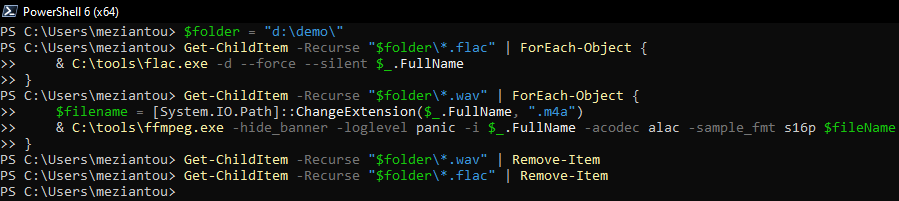
Your folder now contains only ALAC files:
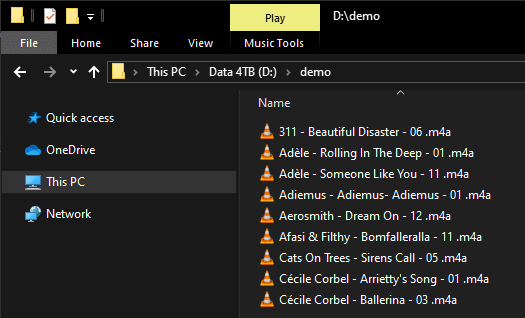
You can now use any application to copy your ALAC music files to your iPhone or iPad.
Do you have a question or a suggestion about this post? Contact me!
