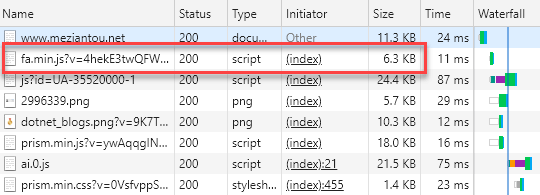
FontAwesome contains thousands of icons, but most projects use only a small subset of them. For instance, this website uses just 15 icons. There is no reason for visitors to download hundreds of icons they will never use. Creating a custom bundle with only the icons you need can shrink the bundle size from several hundred kilobytes down to just a few kilobytes (6 kB on this website).
#Minifying FontAwesome using JavaScript modules
If you are using FontAwesome with ES6 or Node.js, you can use Font Awesome (JavaScript) SVG Core.
JavaScript
import { library, dom } from '@fortawesome/fontawesome-svg-core'
import { faUserAstronaut } from '@fortawesome/free-solid-svg-icons'

// We are only using the user-astronaut icon
library.add(faUserAstronaut)

// Replace any existing <i> tags with <svg> and set up a MutationObserver to
// continue doing this as the DOM changes.
dom.watch()
When bundling your application with a tool like Webpack that supports tree shaking, only the icons you actually use will be included in the final bundle.
#Minifying FontAwesome using a custom application
In my case, I prefer generating a JavaScript file without any additional overhead, such as the MutationObserver. This approach also makes it easier to include icons from other icon sets.
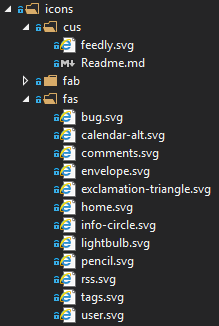
First, download the zip file containing all the icons as SVG files, and keep only the ones you need:
Then, you can create the C# application:
Download .NET SDK: https://dotnet.microsoft.com/download
Create a new application and add the needed NuGet references
Shell
dotnet new console --name FontAwesomeBundler
cd FontAwesomeBundler
dotnet add package Newtonsoft.Json
Replace the Program.cs file with the following content:
C#
using System;
using System.Collections.Generic;
using System.Globalization;
using System.IO;
using System.Text;
using System.Xml.Linq;
using Newtonsoft.Json;

namespace FontAwesomeBundler
{
    internal class Program
    {
        private static void Main(string[] args)
        {
            var ns = XNamespace.Get("http://www.w3.org/2000/svg");

            var sb = new StringBuilder();
            sb.Append("(function(){");

            var icons = new Dictionary<string, Dictionary<string, string[]>>(StringComparer.Ordinal);

            foreach (var dir in Directory.GetDirectories(args[0]))
            {
                var currentDict = new Dictionary<string, string[]>(StringComparer.Ordinal);
                icons[Path.GetFileName(dir)] = currentDict;
                foreach (var file in Directory.GetFiles(dir, "*.svg"))
                {
                    var doc = XDocument.Load(file);
                    var className = Path.GetFileNameWithoutExtension(file);
                    var viewBox = doc.Root.Attribute("viewBox").Value;
                    if (!viewBox.StartsWith("0 0 ", StringComparison.Ordinal))
                        throw new Exception($"Expecting viewbox to start with '0 0 ' for '{className}'");

                    viewBox = viewBox.Substring("0 0 ".Length);

                    var path = doc.Root.Element(ns + "path").Attribute("d").Value;
                    var size = viewBox.Split(' ');
                    var width = int.Parse(size[0], CultureInfo.InvariantCulture);
                    var height = int.Parse(size[1], CultureInfo.InvariantCulture);
                    var ratio = width / height;
                    var ratioClass = ratio == 1f ? "16" : (ratio == 1.25f ? "20" : "14");
                    currentDict.Add(className, new[] { viewBox, path, Math.Ceiling(width / (double)height * 16d).ToString(CultureInfo.InvariantCulture) });
                }
            }

            sb.Append("var icons = " + JsonConvert.SerializeObject(icons, Formatting.Indented) + ";");

            sb.Append(@"function i2svg() {
    var ns = 'http://www.w3.org/2000/svg';
    var groups = Object.keys(icons);
    for (var i = 0; i < groups.length; i++) {
        var groupName = groups[i];
        var iconNames = Object.keys(icons[groupName]);
        for (var j = 0; j < iconNames.length; j++) {
            var iconName = iconNames[j];
            var elements = document.querySelectorAll('i.' + groupName + '.fa-' + iconName);
            for (var k = elements.length - 1; k >= 0; k--) {
                var iconData = icons[groupName][iconName];
                var svg = document.createElementNS(ns, 'svg');
                svg.setAttribute('viewBox', '0 0 ' + iconData[0]);
                svg.setAttribute('class', 'fa fa-' + iconData[2]);
                svg.setAttribute('aria-hidden', 'true');
                var path = document.createElementNS(ns, 'path');
                path.setAttribute('d', iconData[1]);
                path.setAttribute('fill', 'currentColor');
                svg.appendChild(path);

                elements[k].parentNode.replaceChild(svg, elements[k]);
            }
        }
    }
}
var raf = window.requestAnimationFrame;
raf ? raf(function () { window.setTimeout(i2svg, 0); }) : window.addEventListener('load', i2svg);
");

            sb.Append("})();");
            File.WriteAllText(@"fontawesome-custom.js", sb.ToString());
        }
    }
}
Run the application to generate the bundle:
Shell
dotnet run <Path to the icons folder>
You now have a custom JavaScript file that replaces <i class="fas fa-rss"></i> tags with <svg>...</svg> tags. To display the icons correctly, add the following CSS rules. These rules do not cover the full FontAwesome stylesheet; animations such as fa-spin or fa-pulse are omitted, but you can copy them from the original stylesheet if needed.
CSS
.fa {
  display: inline-block;
  font-size: inherit;
  height: 1em;
  overflow: visible;
  vertical-align: -.125em;
}

.fa-9 {
  width: 0.5625em;
}

.fa-12 {
  width: 0.75em;
}

.fa-14 {
  width: 0.875em;
}

.fa-16 {
  width: 1em;
}

.fa-18 {
  width: 1.125em;
}

.fa-20 {
  width: 1.25em;
}
#Conclusion
FontAwesome loads much faster on this website because the bundle only contains the icons it actually needs. Download time, parse time, and evaluation time are all reduced, and memory usage is lower. Overall, it is a significant performance improvement worth considering for any project.
Do you have a question or a suggestion about this post? Contact me!
