In this article, we will see how to create a form with AngularJS and Bootstrap. The form will look like:
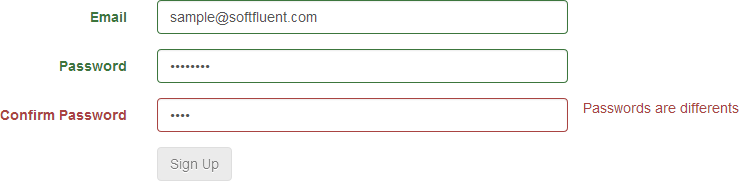
The rules are as follows:
- Email is mandatory
- Password is required and must contain at least 6 characters
- Password and ConfirmPassword must have the same value
- The button must be disabled if the form is not valid
HTML
<div ng-app="sample">
    <form class="form-horizontal" name="registerForm">
        <div class="form-group">
            <label class="col-md-3 control-label" for="Email">Email</label>
            <div class="col-md-4">
                <input id="Email" type="email" class="form-control" name="Email" ng-model="Email" />
            </div>
        </div>
        <div class="form-group">
            <label class="col-md-3 control-label" for="Password">Password</label>
            <div class="col-md-4">
                <input id="Password" type="password" class="form-control" name="Password" ng-model="Password" />
            </div>
        </div>
        <div class="form-group">
            <label class="col-md-3 control-label" for="ConfirmPassword">Confirm Password</label>
            <div class="col-md-4">
                <input id="ConfirmPassword" type="password" class="form-control" name="ConfirmPassword" ng-model="ConfirmPassword" />
            </div>
        </div>
        <div class="form-group">
            <div class="col-md-offset-3 col-md-9">
                <input type="submit" class="btn btn-default" value="Sign Up" />
            </div>
        </div>
    </form>
</div>
#Validation with AngularJS
AngularJS has built-in support for form validation. It exposes several properties on both the form and its individual fields:
$valid: Indicates whether the validation rules are met for the current item$invalid: Indicates if at least one of the validation rules is violated for the current item$pristine: Indicates if the current item has not been modified$dirty: Indicates if the current item has changed$Error.<rule>: Indicates if the validation rule is violated
These properties are accessible via:
<name of the form>.<Property><name of the form>.<field name>.<Property>
The supported validation rules are:
HTML
<input
    [type="email | number | month | url | ..."]
    [required=""]
    [ng-required=""]
    [min=""]
    [max=""]
    [ng-minlength=""]
    [ng-maxlength=""]
    [ng-pattern=""] />
For example, an error message can be displayed when a validation rule is violated:
HTML
<input ng-minlength="6" name="Password" />
<span class="text-danger" ng-show="registerForm.Password.$error.minlength">
   Must contain at least 6 characters
</span>
It is also possible to add your own validation rules by creating directives. For example, we need to verify that both passwords are identical. Since this rule does not exist natively, we will create it:
JavaScript
var app = angular.module('sample', [])
    .directive('equalsTo', [function () {
        /*
        * <input type="password" ng-model="Password" />
        * <input type="password" ng-model="ConfirmPassword" equals-to="Password" />
        */
        return {
            restrict: 'A', // The directive is only available as attribute
            scope: true,
            require: 'ngModel',
            link: function (scope, elem, attrs, control) {
                var check = function () {
                    var currentFieldValue = scope.$eval(attrs.ngModel);           // attrs.ngModel = "ConfirmPassword"
                    var otherFieldValue = scope.$eval(attrs.equalsTo).$viewValue; // attrs.equalsTo = "Password"
                    return currentFieldValue == otherFieldValue;
                };

                scope.$watch(check, function (isValid) {
                    // Indicate whether the field is valid for the rule "equalsTo"
                    control.$setValidity("equalsTo", isValid);
                });
            }
        };
    }]);
We can now update the form to apply these validation rules:
HTML
<input name="Email" type="email" required />
<input name="Password" required ng-minlength="6" />
<input name="ConfirmPassword" required equals-to="registerForm.Password" />
#Updating the UI
Now that all validation rules are in place, we can update the UI dynamically to indicate whether the inputs are valid. Bootstrap uses the CSS classes has-error and has-success to reflect input validity. To apply these classes dynamically, we use the ng-class directive:
HTML
<div class="form-group" ng-class="{'has-error': registerForm.$dirty && registerForm.Password.$invalid, 'has-success': registerForm.Password.$valid}">
  //
</div>
The has-error class is applied when the form has been touched and the password field is invalid (empty or fewer than 6 characters). The has-success class is applied when the password field is valid.
The final step is to disable the submit button until the form is valid. We use the ng-disabled directive for this:
HTML
<input type="submit" class="btn btn-default" value="Sign Up" ng-disabled="registerForm.$invalid" />
Source code of this post: demo-angular-bootstrap-form.zip
Do you have a question or a suggestion about this post? Contact me!
