With the rise of ORMs like Entity Framework, developers often overlook database-specific concerns. These tools handle schema generation (tables, columns) and SQL query generation without requiring a single line of SQL. While this is convenient, a database is not limited to just that. There are stored procedures, CLR functions, queues (Service Broker), configuration settings (compatibility level, collation, snapshot isolation, etc.), and many other elements.
All these objects evolve as the application grows. Just as with application code, it is important to version the database schema. You also need to be able to easily deploy a new database or update an existing one to the latest schema version. In this post, we will see how the SQL Server Database Project addresses these challenges.
#Integrated with Visual Studio
This project integrates with Visual Studio, offering several advantages:
- All application code lives in one place (C#, SQL, and more)
- You can leverage all source control features (TFS or Git)
- The project integrates into the build process, including automated builds (continuous integration / continuous delivery)
- The environment is familiar to many developers
#Importing a database or SQL script
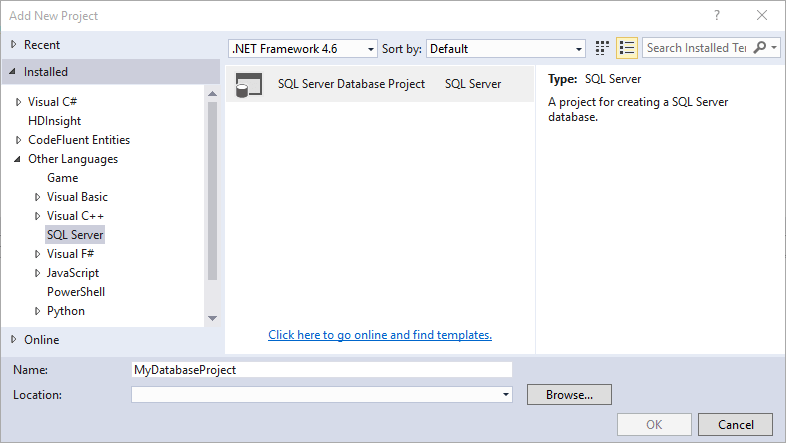
You can initialize the project from an existing database. Even if you did not use this type of project to create your database, you can start taking advantage of all its features right away. Similarly, if you already have a script containing SQL object creation statements, it will be parsed and each CREATE statement will be extracted and placed in a separate file.


You can choose the target SQL Server version (including Azure). This affects autocompletion behavior and error validation. For example, if you select SQL Server 2005, newer features (In-Memory Tables, Sequences, etc.) will be flagged as errors, ensuring the code you write is compatible with the targeted version.

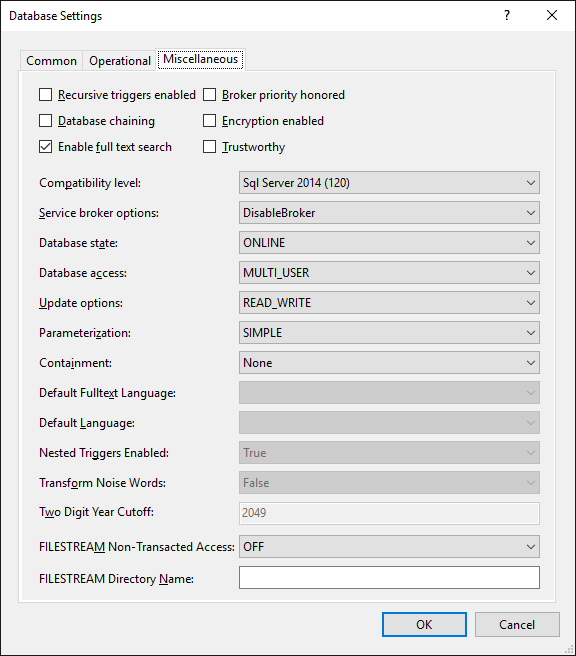
You can also configure database settings, ensuring all parameters are consistent regardless of the server where the database is deployed:
#Declarative model
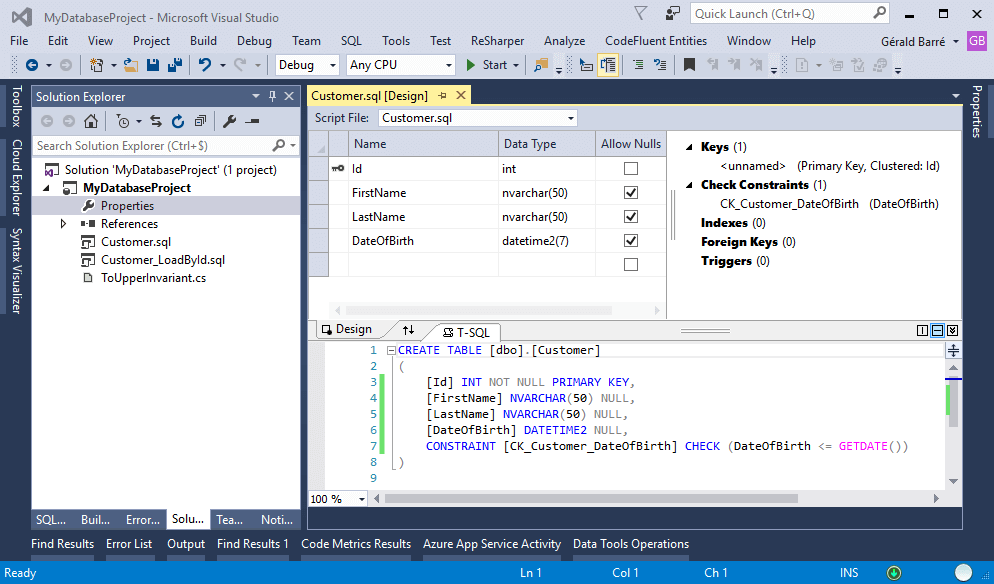
The database is described declaratively. You define the desired state of the database, not how to reach it. All objects are stored as CREATE statements; there are no DROP IF EXISTS ... or ALTER ... statements. The deployment process determines how to transition to that state (see the article on dacpac).
The project can contain both SQL scripts and C# code. The editors provide syntax highlighting and autocompletion for both SQL and .NET code:
#Smart Refactoring
Just like a C# project, Visual Studio offers several refactoring operations:
- Change the name of an object
- Change the schema of an object
- Replace
SELECT * with the list of all columns - Replace the object names with full names if possible (schema.table.column)
These refactoring operations can be very useful, especially when the database contains many objects:
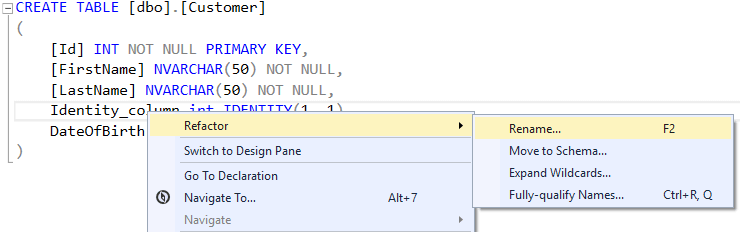
Why smart? When you rename an object, a .refactorlog file is created. This file modifies the standard behavior when generating the deployment script. Instead of dropping a column and recreating it, the script will rename the existing column if the rename has been recorded in the .refactorlog file.
XML
<?xml version="1.0" encoding="utf-8"?>
<Operations Version="1.0" xmlns="http://schemas.microsoft.com/sqlserver/dac/Serialization/2012/02">
  <Operation Name="Rename Refactor" Key="2b862e7a-7b19-4cfb-af61-32fa43235070" ChangeDateTime="12/14/2015 20:32:16">
    <Property Name="ElementName" Value="[dbo].[Customer].[Identity_column]" />
    <Property Name="ElementType" Value="SqlSimpleColumn" />
    <Property Name="ParentElementName" Value="[dbo].[Customer]" />
    <Property Name="ParentElementType" Value="SqlTable" />
    <Property Name="NewName" Value="Identity_columnRenamed" />
  </Operation>
</Operations>
SQL
-- Excerpt from the generated update script
PRINT N'The following operation was generated from a refactoring log file 2b862e7a-7b19-4cfb-af61-32fa43235070';
PRINT N'Rename [dbo].[Customer].[Identity_column] to Identity_columnRenamed';
GO

EXECUTE sp_rename @objname = N'[dbo].[Customer].[Identity_column]', @newname = N'Identity_columnRenamed', @objtype = N'COLUMN';
GO

-- Refactoring step to update target server with deployed transaction logs
IF NOT EXISTS (SELECT OperationKey FROM [dbo].[__RefactorLog] WHERE OperationKey = '2b862e7a-7b19-4cfb-af61-32fa43235070')
INSERT INTO [dbo].[__RefactorLog] (OperationKey) values ('2b862e7a-7b19-4cfb-af61-32fa43235070')
GO
#Error detection
The project is compiled, allowing you to catch as many errors as possible without having to execute procedures manually on the server:
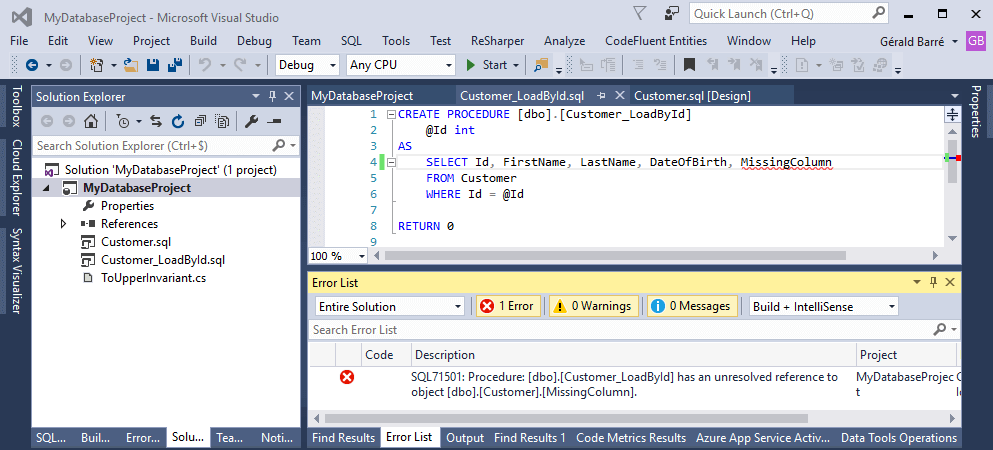
SQL Server supports many features that cannot be fully verified statically, so some errors will only appear at runtime. That said, the most obvious mistakes will be caught at compile time.
#Code analysis
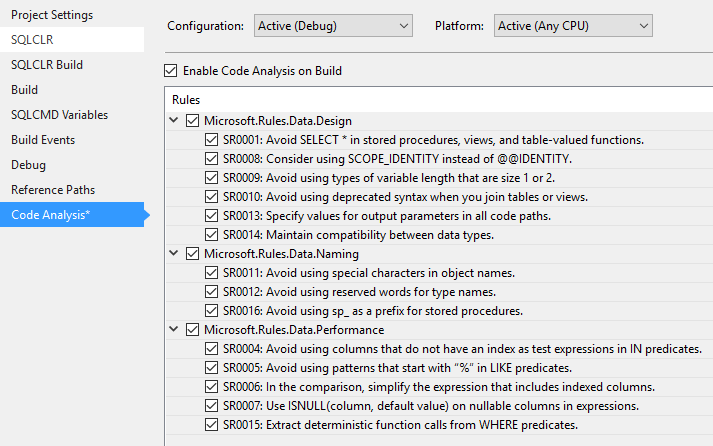
Like .NET projects, Visual Studio can verify that the code follows the conventions defined for the project:

#Compilation & Deployment
Compilation produces a dacpac file that can be used to deploy the database. With this single file, you can create a new database from scratch or update an existing one. You can use Visual Studio (right-click > Publish), SQL Server Management Studio, or SqlPackage.exe for deployment. I've written a post on publishing dacpac files with more details.
#Scripts pre/post-deployment
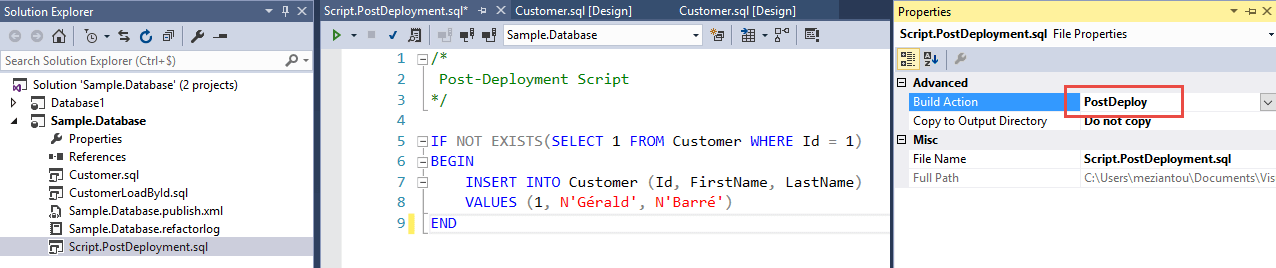
The deployment process is largely managed by the standard dacpac mechanism and has limited customization. However, you can run a SQL script at the beginning and/or end of the deployment. This is useful, for example, to insert or update rows in tables after deployment.
#Schema comparison
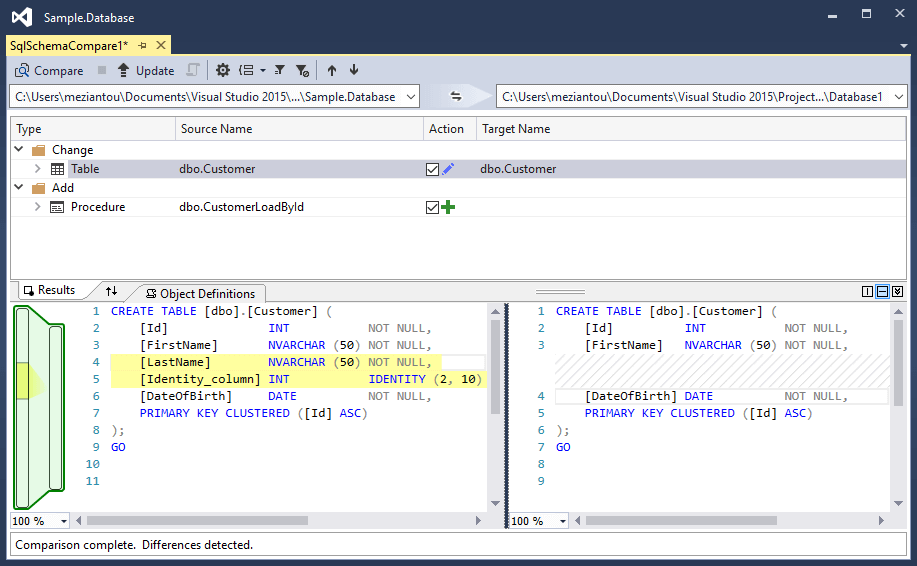
You can compare the project content with an existing database, a dacpac file, or another SQL Server project. Once the comparison is complete, you can update the target database or project. This makes it easy to sync a SQL Server project from an existing database.
#Dependency management
SQL Server supports Linked Servers, which allow queries to span multiple databases.

The project is not aware of the ExternalDatabase database and cannot resolve the name. Just as with a C# project, you can add a reference to the database. This reference can be one of 3 types:
- Another SQL Server project
- A dacpac file
- An existing database
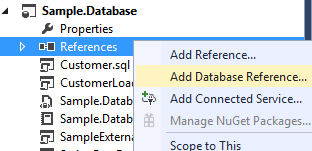
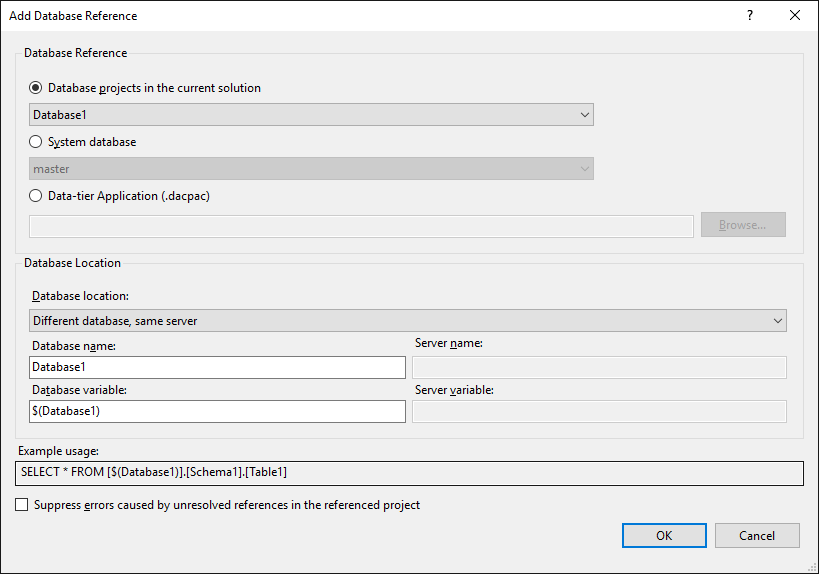
As shown in the usage example, replace ExternalDatabase.dbo ... with the variable name created when adding the reference:
SQL
SELECT * FROM [$(ExternalDatabase)].dbo.Customer
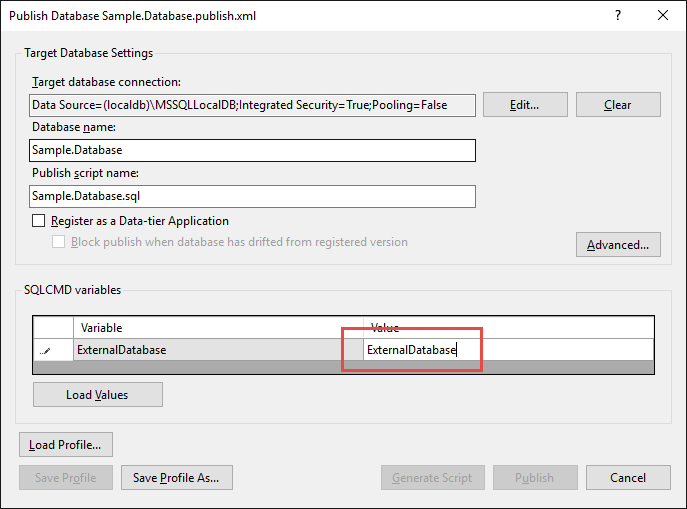
When publishing the database, you can override the value of this variable. This handles cases where the external database name differs between development and production environments.
#Conclusion
SQL Server Database projects simplify database creation. They are fully integrated into the IDE and source control, and enable databases to be deployed and updated across SQL Server environments. Features such as refactoring and error detection are particularly valuable. In short, it is a great toolset for anyone working with SQL Server databases.
Do you have a question or a suggestion about this post? Contact me!
