#What's the system menu?
The system menu appears when you right-click the title bar of a window or press Alt+Space. It contains commands like Close, Move, Size, Minimize, Maximize, Restore, and Help. This menu is always accessible regardless of the window state, even for custom windows that have no title bar.
You can add custom items to the system menu. This is useful for surfacing commands that help with debugging or provide quick access to diagnostic features, such as 'Open logs' or 'Capture trace'.
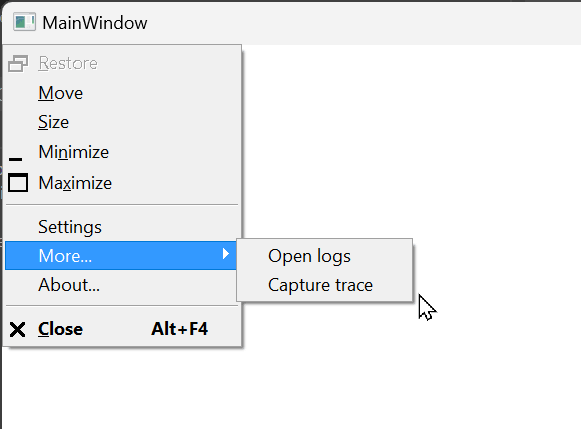
Create a WinForms application and add the Microsoft.Windows.CsWin32 NuGet package. If you are not familiar with this package, you can read this post.
Shell
dotnet new winforms
dotnet add package Microsoft.Windows.CsWin32 --prerelease
We need to add the following declarations to the NativeMethods.txt file:
NativeMethods.txt
GetSystemMenu
InsertMenu
AppendMenu
CheckMenuItem
WM_SYSCOMMAND
CreatePopupMenu
The NativeMethods.txt file instructs the Microsoft.Windows.CsWin32 package to generate the Windows.Win32.PInvoke class, which contains all the native methods needed to extend the system menu. With this in place, we can add new menu items and handle their events:
C#
using Windows.Win32.Foundation;
using Windows.Win32.UI.WindowsAndMessaging;

public partial class Form1 : Form
{

    // Values must be less than 0xF000
    const nuint SettingsCommandId = 1001;
    const nuint AboutCommandId = 1002;
    const nuint OpenLogsCommandId = 1003;
    const nuint CaptureTraceCommandId = 1004;

    public Form1()
    {
        InitializeComponent();

        // Get the system menu instance
        using var menu = Windows.Win32.PInvoke.GetSystemMenu_SafeHandle(new HWND(Handle), bRevert: false);

        // Insert new items
        Windows.Win32.PInvoke.InsertMenu(menu, 5, MENU_ITEM_FLAGS.MF_BYPOSITION | MENU_ITEM_FLAGS.MF_SEPARATOR, 0, "");
        Windows.Win32.PInvoke.InsertMenu(menu, 6, MENU_ITEM_FLAGS.MF_BYPOSITION, SettingsCommandId, "Settings");

        // Create a sub-menu and add it to the system menu
        using var subMenu = Windows.Win32.PInvoke.CreatePopupMenu_SafeHandle();
        Windows.Win32.PInvoke.AppendMenu(subMenu, MENU_ITEM_FLAGS.MF_UNCHECKED, OpenLogsCommandId, "Open logs");
        Windows.Win32.PInvoke.AppendMenu(subMenu, MENU_ITEM_FLAGS.MF_UNCHECKED, CaptureTraceCommandId, "Capture trace");
        Windows.Win32.PInvoke.InsertMenu(menu, 7, MENU_ITEM_FLAGS.MF_BYPOSITION | MENU_ITEM_FLAGS.MF_POPUP, (nuint)subMenu.DangerousGetHandle(), "More...");

        Windows.Win32.PInvoke.InsertMenu(menu, 8, MENU_ITEM_FLAGS.MF_BYPOSITION, AboutCommandId, "About...");
    }

    protected override void WndProc(ref Message m)
    {
        if (m.Msg == Windows.Win32.PInvoke.WM_SYSCOMMAND)
        {
            // Handle click events on the new menu items
            switch ((nuint)m.WParam)
            {
                case SettingsCommandId:
                    MessageBox.Show("Settings was clicked");
                    break;
                case AboutCommandId:
                    MessageBox.Show("About was clicked");
                    break;
                case OpenLogsCommandId:
                    MessageBox.Show("Open logs was clicked");
                    break;
                case CaptureTraceCommandId:
                    MessageBox.Show("Capture trace was clicked");
                    break;
            }
        }

        base.WndProc(ref m);
    }
}
We can now run the application and check the new menu items:
Shell
dotnet run
#WPF
Create a WPF application and add the Microsoft.Windows.CsWin32 NuGet package. If you are not familiar with this package, you can read this post.
dotnet new wpf
dotnet add package Microsoft.Windows.CsWin32 --prerelease
We need to add the following declarations to the NativeMethods.txt file:
NativeMethods.txt
GetSystemMenu
InsertMenu
AppendMenu
CheckMenuItem
WM_SYSCOMMAND
CreatePopupMenu
The NativeMethods.txt file instructs the Microsoft.Windows.CsWin32 package to generate the Windows.Win32.PInvoke class, which contains all the native methods needed to extend the system menu. With this in place, we can add new menu items and handle their events:
C#
using System;
using System.Windows;
using System.Windows.Interop;
using Windows.Win32.Foundation;
using Windows.Win32.UI.WindowsAndMessaging;

namespace WpfApp1;
public partial class MainWindow : Window
{
    // Values must be less than 0xF000
    const nuint SettingsCommandId = 1001;
    const nuint AboutCommandId = 1002;
    const nuint OpenLogsCommandId = 1003;
    const nuint CaptureTraceCommandId = 1004;

    public MainWindow()
    {
        InitializeComponent();
    }

    protected override void OnSourceInitialized(EventArgs e)
    {
        base.OnSourceInitialized(e);

        // Get the HwndSource of the current window
        HwndSource source = (HwndSource)PresentationSource.FromVisual(this);

        // Add a hook to the message loop to manage click events
        source.AddHook(WndProc);

        // Add the new menu items
        using var menu = Windows.Win32.PInvoke.GetSystemMenu_SafeHandle(new HWND (source.Handle), bRevert: false);

        Windows.Win32.PInvoke.InsertMenu(menu, 5, MENU_ITEM_FLAGS.MF_BYPOSITION | MENU_ITEM_FLAGS.MF_SEPARATOR, 0, "");
        Windows.Win32.PInvoke.InsertMenu(menu, 6, MENU_ITEM_FLAGS.MF_BYPOSITION, SettingsCommandId, "Settings");

        using var subMenu = Windows.Win32.PInvoke.CreatePopupMenu_SafeHandle();
        Windows.Win32.PInvoke.AppendMenu(subMenu, MENU_ITEM_FLAGS.MF_UNCHECKED, OpenLogsCommandId, "Open logs");
        Windows.Win32.PInvoke.AppendMenu(subMenu, MENU_ITEM_FLAGS.MF_UNCHECKED, CaptureTraceCommandId, "Capture trace");
        Windows.Win32.PInvoke.InsertMenu(menu, 7, MENU_ITEM_FLAGS.MF_BYPOSITION | MENU_ITEM_FLAGS.MF_POPUP, (nuint)subMenu.DangerousGetHandle(), "More...");

        Windows.Win32.PInvoke.InsertMenu(menu, 8, MENU_ITEM_FLAGS.MF_BYPOSITION, AboutCommandId, "About...");
    }

    private IntPtr WndProc(IntPtr hwnd, int msg, IntPtr wParam, IntPtr lParam, ref bool handled)
    {
        if (msg == Windows.Win32.PInvoke.WM_SYSCOMMAND)
        {
            // Handle click events on the new menu items
            switch ((nuint)wParam)
            {
                case SettingsCommandId:
                    MessageBox.Show("Settings was clicked");
                    handled = true;
                    break;
                case AboutCommandId:
                    MessageBox.Show("About was clicked");
                    handled = true;
                    break;
                case OpenLogsCommandId:
                    MessageBox.Show("Open logs was clicked");
                    handled = true;
                    break;
                case CaptureTraceCommandId:
                    MessageBox.Show("Capture trace was clicked");
                    handled = true;
                    break;
            }
        }

        return IntPtr.Zero;
    }
}
We can now run the application and check the new menu items:
Shell
dotnet run
Do you have a question or a suggestion about this post? Contact me!
