NuGet packages are widely used in .NET projects. A few options can significantly improve performance and security when restoring packages.
#Lock Files
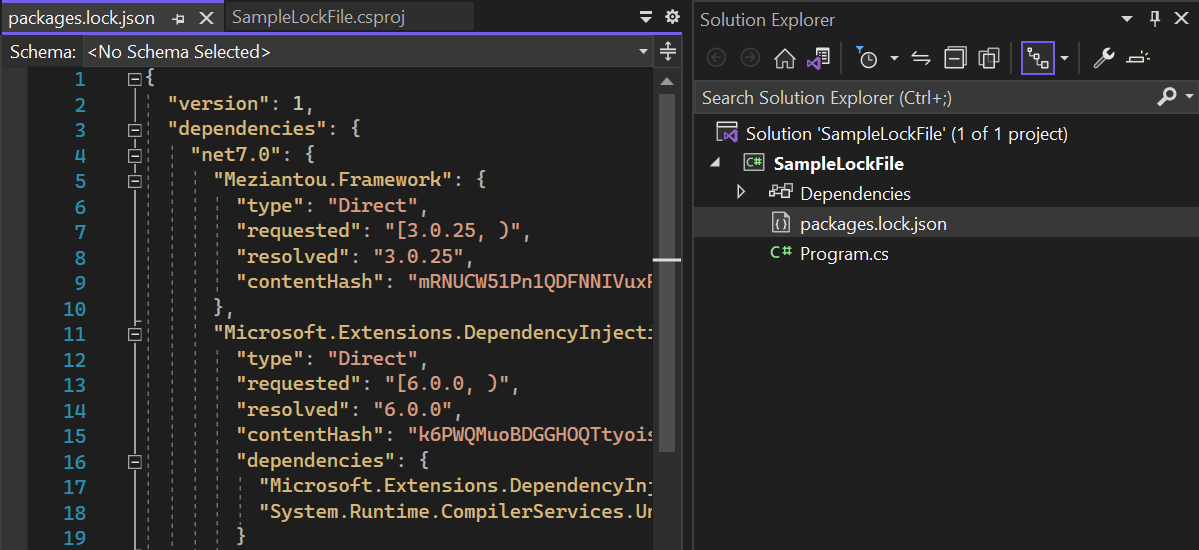
When restoring packages, NuGet creates a dependency graph that includes all declared and transitive packages. This graph determines which packages to download and install. A lock file stores this dependency graph and reuses it on subsequent restores, guaranteeing that the same packages are always resolved.
A lock file has multiple advantages:
- Security: The lock file contains the package hash. If a corrupted or malicious package is downloaded, NuGet detects it and fails.
- Deterministic restore: Computing the dependency graph can sometimes be non-deterministic (different NuGet configurations, floating versions, deleted packages, etc.). A lock file ensures the same packages are restored regardless of configuration.
- Performance: The dependency graph does not need to be recomputed on each restore.
- Reliability: When using a NuGet server with upstream support, such as Azure Artifacts or Artifactory, the server doesn't need to contact the upstream source to compute the dependency graph. If nuget.org is down, you can still restore packages as long as they are already in the server cache.
There are also some drawbacks:
- The lock file can introduce more merge conflicts
- Some tools such as Dependabot don't update the lock file (at the time of writing)
To enable the lock file, you need to add the following line to your .csproj file:
Sample.csproj (csproj (MSBuild project file))
<Project Sdk="Microsoft.NET.Sdk">
  <PropertyGroup>
    <!-- Generate the lock file -->
    <RestorePackagesWithLockFile>true</RestorePackagesWithLockFile>

    <!-- Restore the exact packages as listed in the lock file -->
    <RestoreLockedMode Condition="'$(ContinuousIntegrationBuild)' == 'true'">true</RestoreLockedMode>
  </PropertyGroup>
  <ItemGroup>
    <PackageReference Include="Meziantou.Framework" Version="3.0.25" />
  </ItemGroup>
</Project>
Additional resources:
#Package Source Mapping
If you have multiple NuGet sources to restore packages, you may want to enable package source mapping. NuGet tries to download packages from all sources in parallel and uses the result from whichever source responds first. Package Source Mapping lets you specify which source should be used to restore each package.
Package Source Mapping provides the following advantages:
- Deterministic restore / Security: Without source mapping, if multiple servers host the same package, NuGet may restore it from any of them. If the package differs across servers, restores can be inconsistent or insecure.
- Performance: NuGet won't waste time querying multiple servers, so you reduce the number of network requests to restore packages.
To use Package Source Mapping, you need to create a nuget.config file at the root of the repository and adapt the configuration for each package.
nuget.config (XML)
<packageSources>
  <clear />
  <add key="nuget.org" value="https://api.nuget.org/v3/index.json" />
  <add key="mycompany.org" value="https://mycompany.org/nuget/" />
</packageSources>

<packageSourceMapping>
<!-- key must match the key in <packageSources> -->
  <packageSource key="nuget.org">
    <package pattern="*" />
  </packageSource>
  <packageSource key="mycompany.org">
    <package pattern="MyCompany.*" />
    <package pattern="MyCompanySpecificPackage" />
  </packageSource>
</packageSourceMapping>
If you are not sure which source was used to restore a package, you can check the .nupkg.metadata in the global cache as explained in this post.
Additional resources:
Do you have a question or a suggestion about this post? Contact me!
