There are many ways to generate PDF files. You can use a PDF library, but building one manually is not straightforward. Report libraries are another option, but they are often paid solutions and overly complex for simple needs.
In this post, we'll use an HTML template and Playwright to generate a PDF file. Using a browser to convert an HTML file to a PDF is very convenient, as it lets you use all HTML and CSS features such as CSS frameworks, custom fonts, and more. It also supports multi-page documents.
#Creating the html file
For the template, I use Scriban because it is a simple yet powerful scripting language well-suited for this use case. First you need to add a reference to the NuGet package:
csproj (MSBuild project file)
  <ItemGroup>
    <PackageReference Include="Scriban" Version="4.0.1" />
  </ItemGroup>
Then, you need to create an html file to store your template:
HTML
<!DOCTYPE html>
<html>
<head><link rel="stylesheet" href="invoice.css"></head>
<body style="padding: 3rem">
    <h1>Invoice</h1>
    Awesome company<br />
    7026 Hunters Creek Dr<br />

    <h2 style="margin-top: 3rem">Bill to</h2>
    {{ invoice.customer.name | html.escape }}<br />
    {{ invoice.customer.address | html.escape }}<br />

    <div style="margin-top: 3rem">
        Invoice No: #{{ invoice.id }}<br />
        Date: #{{ invoice.created_at }}
    </div>

    <table class="table">
        <thead>
            <tr>
                <th>Item Code</th>
                <th>Description</th>
                <th>Quantity</th>
                <th>Unit Price</th>
                <th>Total Price</th>
            </tr>
        </thead>

        {{ for order_line in invoice.order_lines }}
        <tr>
            <td>{{ order_line.item_code | html.escape }}</td>
            <td>{{ order_line.description | html.escape }}</td>
            <td class="text-end">${{ order_line.quantity }}</td>
            <td class="text-end">${{ order_line.unit_price | math.format "F2" }}</td>
            <td class="text-end">${{ order_line.total_price | math.format "F2" }}</td>
        </tr>
        {{ end }}

        <tfoot>
            <tr>
                <td class="text-end" colspan="4"><strong>Total:</strong></td>
                <td class="text-end">${{ invoice.total_price | math.format "F2" }}</td>
            </tr>
        </tfoot>
    </table>
</body>
</html>
Finally, you can load your template and render it:
C#
// using Scriban;

// Load the template
// perf: you should parse the template once and reuse it for all rendering
var templateContent = File.ReadAllText("template.html");
var template = Template.Parse(templateContent);

// note: scriban convert names to snake case (OrderId => order_id)
// In your template, you must use {{ invoice.order_id }} instead of {{ Invoice.OrderId }}
var templateData = new { Invoice = LoadOrder(orderId) };
var pageContent = template.Render(templateData);
You now have an HTML string that you need to convert to PDF.
#Converting HTML to PDF
Playwright is a browser automation tool. You can navigate to pages, get element properties, execute JavaScript, take screenshots, record videos, and more. You can also use it to export a page to PDF or an image file.
First, you need to install the Playwright NuGet package and download the necessary browsers:
Shell
dotnet add package Microsoft.Playwright
dotnet build
playwright install
Then, you can open the page and export the page to PDF:
C#
using Microsoft.Playwright;

// In my case, I don't want to create a file, so I use a data url to open the html file
var dataUrl = "data:text/html;base64," + Convert.ToBase64String(Encoding.UTF8.GetBytes(pageContent));

// Open the page and wait for resources to be loaded (useful if you embed images or external stylesheets)
using var playwright = await Playwright.CreateAsync();
await using var browser = await playwright.Chromium.LaunchAsync(new BrowserTypeLaunchOptions
{
    Headless = true,
});

await using var context = await browser.NewContextAsync();
var page = await context.NewPageAsync();
await page.GotoAsync(dataUrl, new PageGotoOptions { WaitUntil = WaitUntilState.NetworkIdle });

// Generate the PDF
var output = await page.PdfAsync(new PagePdfOptions
{
    Format = "A4", // or "letter"
    Landscape = false,
});

// Save the pdf to the disk
await File.WriteAllBytesAsync("output.pdf", output);
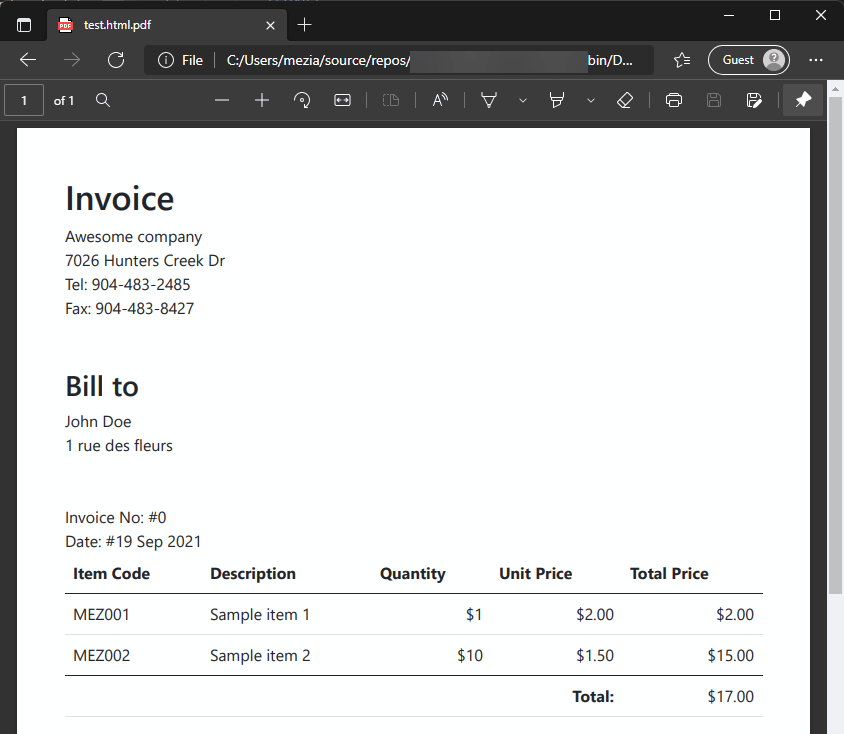
If the page references local files, such as images, you cannot use a data URL. Instead, save the HTML file to disk and open it using its full path.
C#
var htmlPath = Path.GetFullPath("output.html");
await File.WriteAllTextAsync(htmlPath, pageContent);
// ...
await page.GotoAsync(htmlPath, new PageGotoOptions { WaitUntil = WaitUntilState.NetworkIdle });
//...
#Additional resources
Do you have a question or a suggestion about this post? Contact me!
