Writing PInvoke code is not trivial. You typically need to look up method signatures from documentation or header files, which is time-consuming and error-prone. No single NuGet package covers all Win32 APIs, given the sheer number of methods, constants, and structures available. Fortunately, Microsoft has released a Roslyn source generator that automatically generates PInvoke code for Win32 APIs.
In this post, I'll build a WinForms application that displays a live thumbnail of another running application. The example uses methods from the DwmApi.
First, you need to create a WinForms project:
Shell
dotnet new winforms
Then, you need to reference the NuGet package Microsoft.Windows.CsWin32:
Shell
dotnet add package Microsoft.Windows.CsWin32 --prerelease
The previous command adds the following package reference to the csproj file:
csproj (MSBuild project file)
<Project Sdk="Microsoft.NET.Sdk">

  <PropertyGroup>
    <OutputType>WinExe</OutputType>
    <TargetFramework>net6.0-windows</TargetFramework>
    <UseWindowsForms>true</UseWindowsForms>
  </PropertyGroup>

  <ItemGroup>
    <PackageReference Include="Microsoft.Windows.CsWin32" Version="0.2.10-beta">
      <PrivateAssets>all</PrivateAssets>
      <IncludeAssets>runtime; build; native; contentfiles; analyzers; buildtransitive</IncludeAssets>
    </PackageReference>
  </ItemGroup>

</Project>
Next, create a file named NativeMethods.txt at the root of the project. This file lists the methods and constants you want to generate. You can use the * wildcard to import multiple symbols at once.
NativeMethods.txt
DwmRegisterThumbnail
DwmUpdateThumbnailProperties
DWM_TNP_*
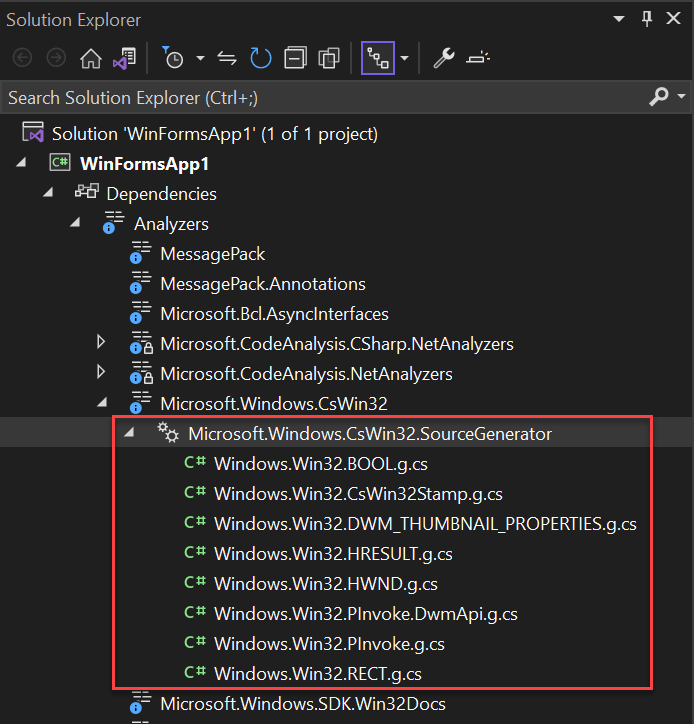
After compiling the application, the generated files appear in Solution Explorer:
You can now use the generated code in your application:
Form1.cs (C#)
public partial class Form1 : Form
{
    private nint _thumbnail;

    public Form1()
    {
        InitializeComponent();
        Load += Form1_Load;
        Resize += Form1_Resize;
    }

    private void Form1_Resize(object? sender, EventArgs e)
    {
        UpdateThumbnail();
    }

    private void Form1_Load(object? sender, EventArgs e)
    {
        var mainWindowHandle = Process.GetProcessesByName("devenv")[0].MainWindowHandle;

        // Register the thumbnail
        // Convert IntPtr to HWND using the explicit converter
        var hresult = PInvoke.DwmRegisterThumbnail((HWND)this.Handle, (HWND)mainWindowHandle, out var thumbnailId);

        // HWND contains properties to check the result (Succeeded, Failed)
        if (hresult.Succeeded)
        {
            _thumbnail = thumbnailId;
            UpdateThumbnail();
        }
    }

    private void UpdateThumbnail()
    {
        // Specify the destination rectangle size
        RECT dest = new()
        {
            left = 0,
            top = 0,
            bottom = Height,
            right = Width,
        };

        // Set the thumbnail properties for use
        DWM_THUMBNAIL_PROPERTIES dskThumbProps = new()
        {
            dwFlags = PInvoke.DWM_TNP_SOURCECLIENTAREAONLY | PInvoke.DWM_TNP_VISIBLE | PInvoke.DWM_TNP_OPACITY | PInvoke.DWM_TNP_RECTDESTINATION,
            fSourceClientAreaOnly = false,
            fVisible = true,
            opacity = 255,
            rcDestination = dest,
        };

        // Display the thumbnail
        var hr = PInvoke.DwmUpdateThumbnailProperties(_thumbnail, in dskThumbProps);
        if (hr.Failed)
        {
            // todo
        }
    }
}
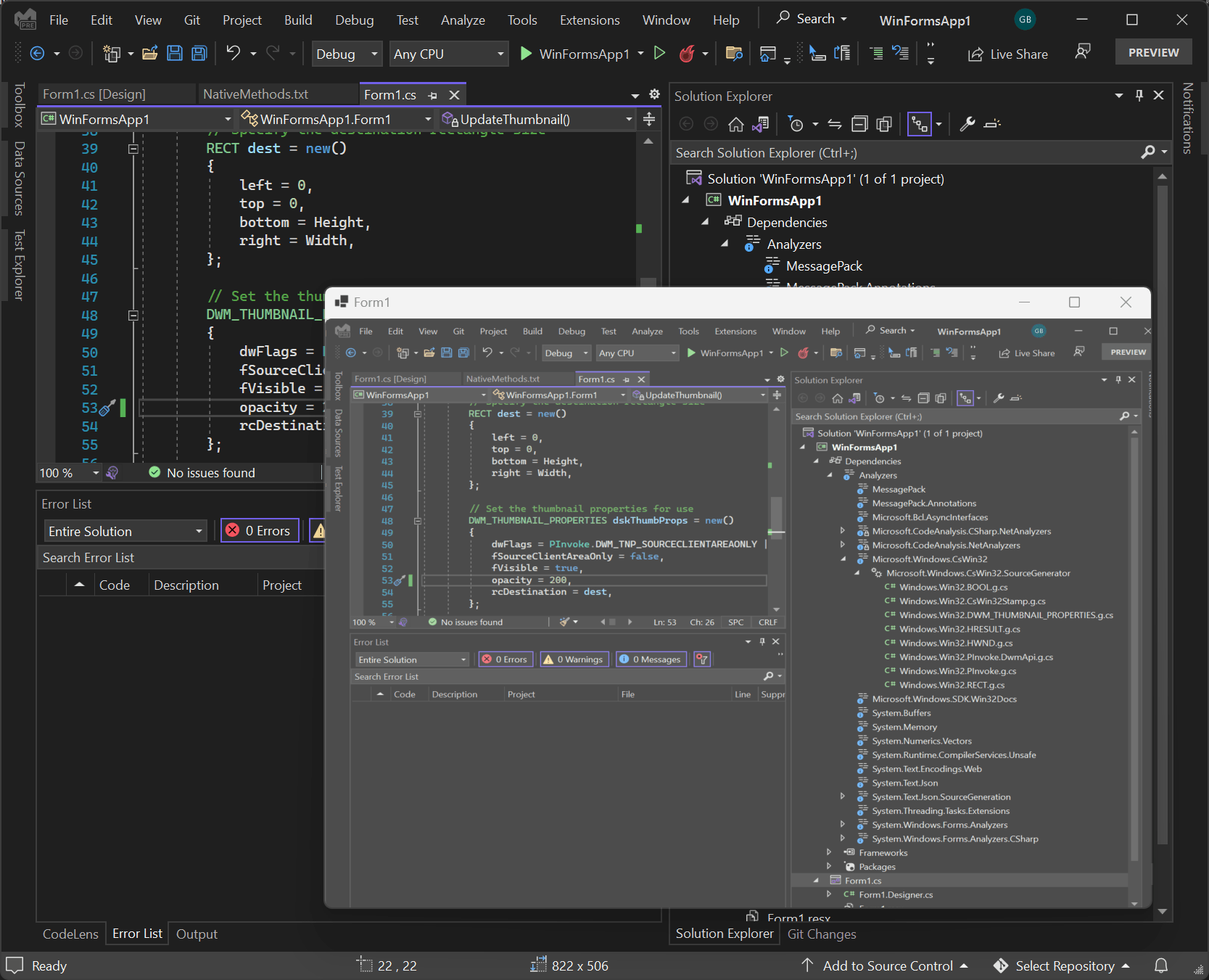
When the application starts, it shows a live thumbnail of the Visual Studio window.
#Additional resources
Do you have a question or a suggestion about this post? Contact me!
