After developing an application, you need to be able to deploy it on the end user's computer. There are several methods, each suited to different needs. Before choosing one, consider the following questions:
- What needs to be deployed? Files, desktop shortcuts, registry keys, file associations, etc.
- What are the dependencies and how should they be installed? Pay attention to version conflicts when using shared components.
- Who performs the deployment? The user, an administrator, or a centralized management system (e.g., Active Directory)?
- Is the installation per user or per machine?
- Does the application require configuration during installation? Installation location, optional components, license key, etc.
- How do you verify that the application is correctly installed?
- How do you update the application after deployment? How frequently?
- How do you uninstall it?
- Should installation and updates be transactional (all or nothing)?
- And likely others…
Here are several ways to deploy an application:
#Copy of the application files
This is the simplest solution: copy the application (executable or zip archive) to a location accessible to the user (website, FTP server, shared directory). The user can then retrieve it and place it wherever they want.
Applications deployed this way should uninstall cleanly, without leaving the system in an inconsistent state, by simply deleting the executable.
#Windows Installer
Windows Installer is the standard way to install the software (documentation).
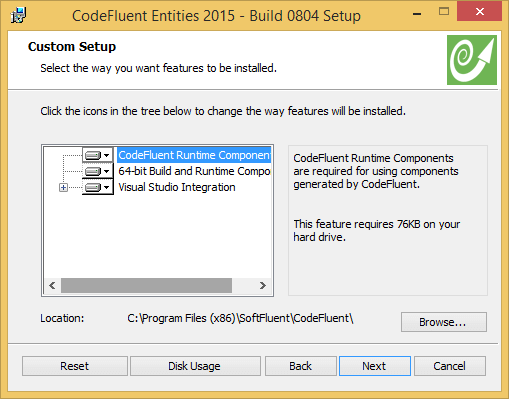
Windows Installer (formerly Microsoft Installer) is a Windows component that installs, updates, and uninstalls programs. The developer creates a package (MSI file) that describes the deployment steps: creating folders, copying files, creating registry keys, creating shortcuts, launching executables, etc. Windows Installer also offers many additional features, including:
- Installation with a graphical interface or silent installation
- Ability to split the application into several features. Users can install only the components they need. For example, the Office installer lets you choose which products to install (Word, Excel, PowerPoint, Access, etc.)
- 2 installation contexts: By machine (all users) or by user
- On-demand installation: The application (or feature) is only installed when it is first used
- Logging the installation
- Transactional installation: 1 transaction per MSI or 1 transaction for multiple MSI
- Ability to sign the MSI file with Authenticode
This solution is feature-rich and is the standard on Windows. However, free tools for creating MSI packages are not always intuitive. Notable options include WiX and Visual Studio Installer Project (built-in for VS2010 and available as an extension for VS2013).
#Installer generator
Some installers do not rely on Windows Installer. Instead, they generate an executable (.exe) that you can use to install the software. The most popular are InnoSetup and NSIS.
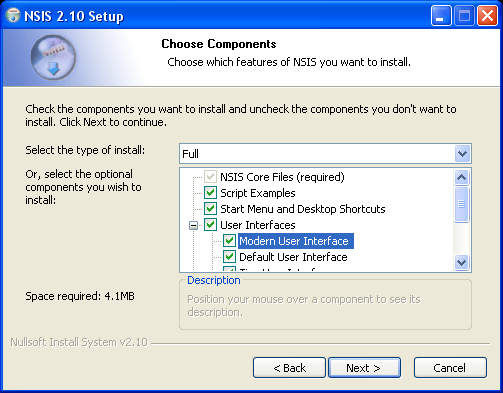
These follow the same principle as Windows Installer but generate an executable (.exe) instead of an MSI. The generated package does not use Windows Installer and therefore does not benefit from its features. It is also harder to integrate with deployment solutions such as GPOs. However, this type of installer is generally easier to create than an MSI file.
#ClickOnce
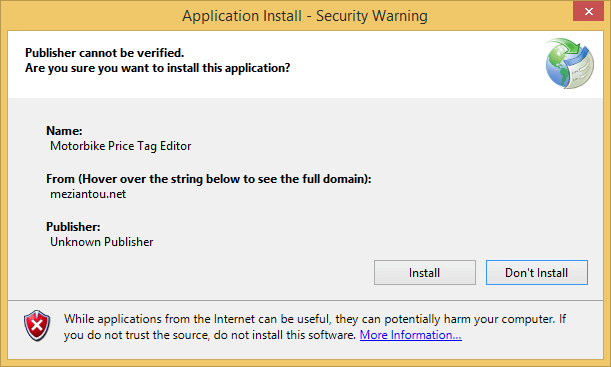
ClickOnce is a deployment technology for .NET applications. It addresses three key concerns:
- No need for administrator rights => All users can install the application
- Each application installed in a specific folder => This avoids problems of conflict with shared components
- Integrated update system
Deployment is straightforward: copy the files generated by ClickOnce to a website, a shared folder, or a local folder (note that the last option does not support automatic updates). Like MSI, it is possible to sign the installer.
ClickOnce is simple to implement and meets specific needs, however, there is no way to customize the installation (custom GUI, installation location, parameters during installation, etc.).
#Package Management System
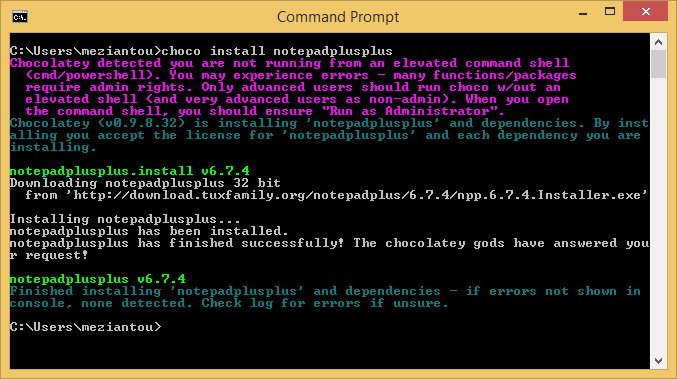
Unix systems have long used package management systems to handle the deployment of commercial off-the-shelf (COTS) software: Aptitude, Yum, etc. Chocolatey and similar tools aim to bring the same mechanism to Windows.
Chocolatey is based on PowerShell and the NuGet format. It provides cmdlets to quickly wrap traditional installers (MSI or EXE) and gives you the full power of PowerShell to customize the process.
Currently, this type of solution is not yet widely adopted on Windows, but it is expected to grow with Windows 10 and OneGet.
#Conclusion
- No need for installation => Copy of files
- Simple need and user installation => ClickOnce
- More advanced need => MSI
Optionally, you can wrap your chosen solution in a Chocolatey package.
Do you have a question or a suggestion about this post? Contact me!
