The procedure below applies to Windows 7 Ultimate and Professional, both x86 and x64. Proceed with caution, as this procedure may involve risks.
Concurrent sessions allow you to remotely connect to your computer while another user is already using it, without disconnecting them. By default, Windows 7 allows only one active user at a time. This patch removes that limitation.
#Step 1: Download the patch
Download the file: Concurrent_RDP_Win7_RTM_patcher.
#Step 2: Install the patch
Run the install.cmd script as an administrator.
The script asks whether you want to enable multiple sessions per user. This option allows the same user account to have multiple simultaneous sessions.
The script then asks whether to allow connections for users without a password (e.g., "Guest"). In most cases, answer "No", as this poses a security risk.
After a moment, the following screen should appear, confirming that everything completed successfully:
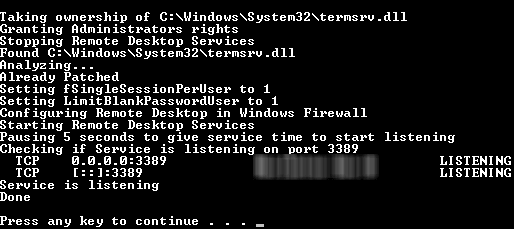
Reboot the computer.
#Step 3: Enable RDP
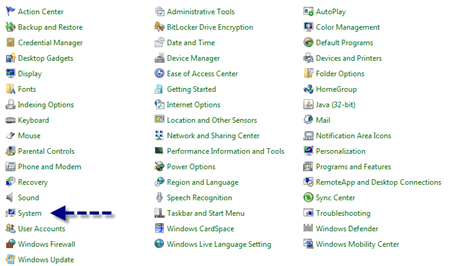
Make sure Remote Desktop is enabled. Open the Control Panel and navigate to "System":
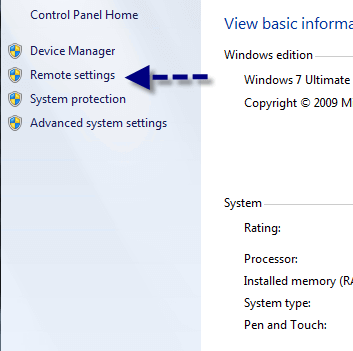
Click on "Remote Settings" (on the left sidebar).
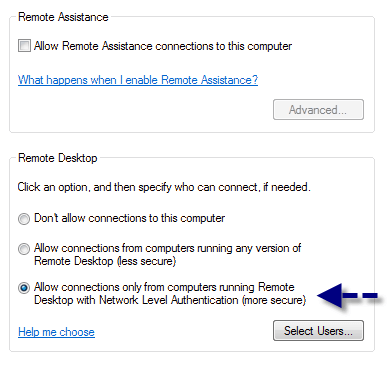
Select "Allow connection only from computers running Remote Desktop with Network Level Authentication (more secure)".
Voilà 😃
Do you have a question or a suggestion about this post? Contact me!
