Snapshot testing is a technique for writing tests that assert the state of an object. The object is serialized and stored in a file. On subsequent runs, the serialized output is compared to the existing snapshot file; if the content differs, the test fails. In .NET, the most common library for snapshot testing are Verify and Meziantou.Framework.SnapshotTesting.
Inline snapshot testing works the same way, except the snapshot is stored directly in the test file as a string, with no external file. This makes tests easier to read, since the expected value appears right next to the assertion. Inline snapshots are best suited for small text output; they should not be used for binary data such as images.
#Benefits of snapshot testing
Snapshot testing has several benefits:
- Assertions are easy to write and maintain because they are generated automatically.
- Because assertions require less effort, developers tend to assert more, leading to more thorough tests.
- Assertions are more expressive and easier to read. A snapshot can validate a complete object graph, whereas a series of individual property assertions is harder to follow.
- On failure, the diff tool highlights the difference between the expected and actual values, making it easier to understand what changed.
#Inline Snapshot testing in .NET
Let's look at an example of Inline Snapshot testing using Meziantou.Framework.InlineSnapshotTesting:
Shell
dotnet new xunit
dotnet add package Meziantou.Framework.InlineSnapshotTesting
UnitTest1.cs (C#)
using Meziantou.Framework.InlineSnapshotTesting;

public class UnitTest1
{
    [Fact]
    public void Test1()
    {
        var subject = new
        {
            FirstName = "Gérald",
            LastName = "Barré",
            Nickname = "Meziantou",
        };

        InlineSnapshot.Validate(subject); // The snapshot will be generated the first time you run the test
    }
}
Demo of Inline Snapshot testing in .NET
In the video above, the test fails because no snapshot exists yet. The library generates the new snapshot and opens a diff tool for review. Once you accept the new snapshot, the source file is updated in-place, and the test will pass on the next run.
#Testing a REST API using snapshot testing
Snapshot testing is well-suited for testing REST API output. The default serializer supports HttpResponseMessage directly, so API testing requires minimal setup. JSON and XML content are pretty-printed by default to keep snapshots readable.
C#
[Fact]
public async Task ApiTest()
{
    // Arrange: Prepare the test server
    var builder = WebApplication.CreateBuilder();
    builder.WebHost.UseTestServer();
    await using var application = builder.Build();
    application.MapGet("samples/{id}", (int id) => Results.Ok(new { id = id, name = "Sample" }));
    _ = application.RunAsync();
    using var httpClient = application.GetTestClient();

    // Act: Call the API
    using var response = await httpClient.GetAsync("samples/1");

    // Assert: Validate the response
    // The content of the snapshot is generated automatically when runing the test
    InlineSnapshot.Validate(response, """
        StatusCode: 200 (OK)
        Content:
          Headers:
            Content-Type: application/json; charset=utf-8
          Value:
            {
                "id": 1,
                "name": "Sample"
            }
        """);
}
#Testing a Blazor component using snapshot testing
You can use bUnit to test a Blazor component:
C#
[Fact]
public void Test()
{
    var cut = RenderComponent<Sample.MyComponent>();

    // The content of the snapshot is generated automatically when runing the test
    InlineSnapshot.Validate(cut.Markup, """
        <div class="my-component" b-9hms91upey>
            This component is defined in the Sample library.
        </div>
        """);
}
#Configuration
C#
// Set the defaut configuration
static class AssemblyInitializer
{
    [System.Runtime.CompilerServices.ModuleInitializer]
    public static void Initialize()
    {
        InlineSnapshotSettings.Default = InlineSnapshotSettings.Default with
        {
            // Set the update strategy when a snapshot is different from the expected value.
            // - Default: MergeTool on a dev machine, Disallow on a CI machine
            // - Disallow: the test will fail
            // - Overwrite: the snapshot will be overwritten with the new value, and the test will fail
            // - MergeTool: the configured merge tool will be opened to edit the snapshot
            // - MergeToolSync: the configured merge tool will be opened to edit the snapshot, and wait for the diff to be closed before continuing the test
            SnapshotUpdateStrategy = SnapshotUpdateStrategy.Default,

            // Set the default merge tool.
            // If not set, it uses the diff tool from the current IDE (Visual Studio, Rider, VS Code)
            MergeTools = [MergeTool.VisualStudioCode],

            // Configure the serializer used to create the snapshot.
            // The default serializer is the HumanReadableSerializer. You can use JsonSnapshotSerializer or a custom serializer.
            SnapshotSerializer = new HumanReadableSnapshotSerializer(settings =>
            {
                settings.IncludeFields = true;
                settings.ShowInvisibleCharactersInValues = true;
                settings.DefaultIgnoreCondition = HumanReadableIgnoreCondition.WhenWritingDefault,
            }),
        };
    }
}
You can also provide a configuration for a specific test:
C#
[Fact]
public void Test1()
{
    // Customize settings
    var settings = InlineSnapshotSettings.Default with
    {
        MergeTools = [MergeTool.VisualStudioCode],
    };

    InlineSnapshot.WithSettings(settings).Validate(subject, "snapshot");
}
#Dev machine vs CI
By default, the library uses DiffEngine to detect CI environments based on environment variables set by the build system.
When a CI environment is detected, the SnapshotUpdateStrategy is ignored and the test fails if the snapshot differs from the expected value. This prevents tests from accidentally passing on CI when using SnapshotUpdateStrategy.Overwrite.
For unsupported build systems, set BuildServerDetector.Detected to true to force CI mode. The library also detects continuous testing tools such as NCrunch or Live Unit Testing in Visual Studio. Set ContinuousTestingDetector.Detected to true to disable the update strategy for those tools.
#How does it know which file to edit?
The library uses two mechanisms to identify the file to edit. First, Validate uses the [CallerFilePath] and [CallerLineNumber] attributes to get the compiler-provided source location. Second, it uses the call stack and PDB information to confirm the file and column to edit. The PDB also provides additional context such as the C# language version, which lets the library choose the appropriate string syntax for the generated snapshot. For instance, if the C# version is earlier than 11, the library will not use raw string literals.
Then, the library parses the file using Roslyn, the C# compiler, and finds the argument to edit. It ensures the value in the file is the same as the one passed to the method. If the value differs, the snapshot is not updated, and the test fails. So, the tool only updates a file when it's sure it's the right file.
Note that you can disable PDB validation if needed:
C#
InlineSnapshotSettings.Default.ValidateSourceFilePathUsingPdbInfoWhenAvailable = false;
InlineSnapshotSettings.Default.ValidateLineNumberUsingPdbInfoWhenAvailable = false;
#How is the data serialized
By default, the library uses HumanReadableSerializer. Why not use an existing serializer? Most serializers are not designed for human readability. JSON, for example, escapes certain characters and adds noise such as quotes and brackets that make snapshots harder to read. YAML has similar issues. More importantly, general-purpose serializers must support deserialization, which adds constraints that are unnecessary for snapshot testing, where the output only needs to be compared, not round-tripped.
The HumanReadableSerializer uses a format similar to YAML, but does not escape characters or add quotes around strings, making snapshots cleaner and easier to read. It also supports a wider range of types, since deserialization is not required. For example, it can serialize an HttpResponseMessage.
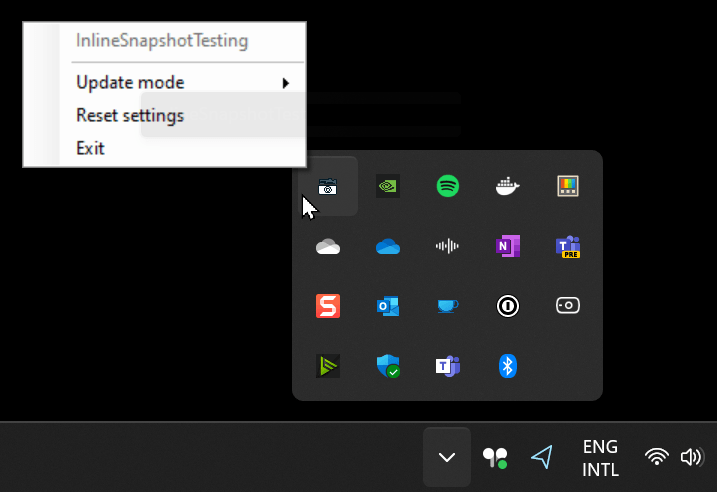
On Windows, the default configuration starts a small tool in the notification tray, letting you quickly change the update strategy.
#Additional resources
Do you have a question or a suggestion about this post? Contact me!
