winget is a package manager for Windows. You can use winget install <package> to install new software, or winget upgrade <package> and winget upgrade --all --silent to upgrade one or all installed packages. But what if you want to upgrade only a subset of your software, or schedule upgrades to run every night? This post explains how to use winget and PowerShell to keep your Windows software up to date.
Winget can be used via winget.exe or through a PowerShell module. This post uses the PowerShell module, which makes it easy to query installed packages and filter them.
Before using winget from PowerShell, install the module with:
PowerShell
Install-Module -Name Microsoft.WinGet.Client
To list all packages with an available update:
PowerShell
Get-WinGetPackage | Where-Object { $_.IsUpdateAvailable }
To update all packages:
PowerShell
Get-WinGetPackage | Where-Object { $_.IsUpdateAvailable } | Update-WinGetPackage
To exclude specific packages from the update:
PowerShell
Get-WinGetPackage `
    | Where-Object { $_.IsUpdateAvailable } `
    | Where-Object { $_.Id -notlike "TechSmith.*" } `
    | Update-WinGetPackage
#Auto update using a scheduled task
Create a file named WingetUpdate.ps1:
WingetUpdate.ps1 (PowerShell)
Install-Module -Name Microsoft.WinGet.Client
Get-WinGetPackage
    | Where-Object {$_.IsUpdateAvailable}
    | Where-Object {$_.Id -notlike "TechSmith*"} # You can filter out packages you don't want to update
    | Update-WinGetPackage
Create a new scheduled task using the following command:
PowerShell
# Note: This script must be run as admin if "-RunLevel Highest" is present

# TODO replace with the actual path to the script
$ScriptPath=(Resolve-Path "WingetUpdate.ps1").Path

$WinGet = "$env:LOCALAPPDATA\Microsoft\WindowsApps\winget.exe"
$Pwsh = (Get-Command pwsh).Source

$Time = New-ScheduledTaskTrigger -At 04:00 -Daily
$Actions = @(
    # Update all sources, so that winget can find the latest version of the packages
    New-ScheduledTaskAction -Execute "$WinGet" -Argument "source update"
    New-ScheduledTaskAction -Execute "$Pwsh" -Argument "`"$ScriptPath`"}`""
)

$Settings = New-ScheduledTaskSettingsSet -WakeToRun:$false `
                                        -MultipleInstances IgnoreNew `
                                        -RunOnlyIfNetworkAvailable:$true `
                                        -StartWhenAvailable:$true
Register-ScheduledTask -TaskName "Update winget" -TaskPath Updates `
                       -Trigger $Time -Action $Actions -Settings $Settings `
                       -RunLevel Highest # Remove this one if you don't want to run the task as admin
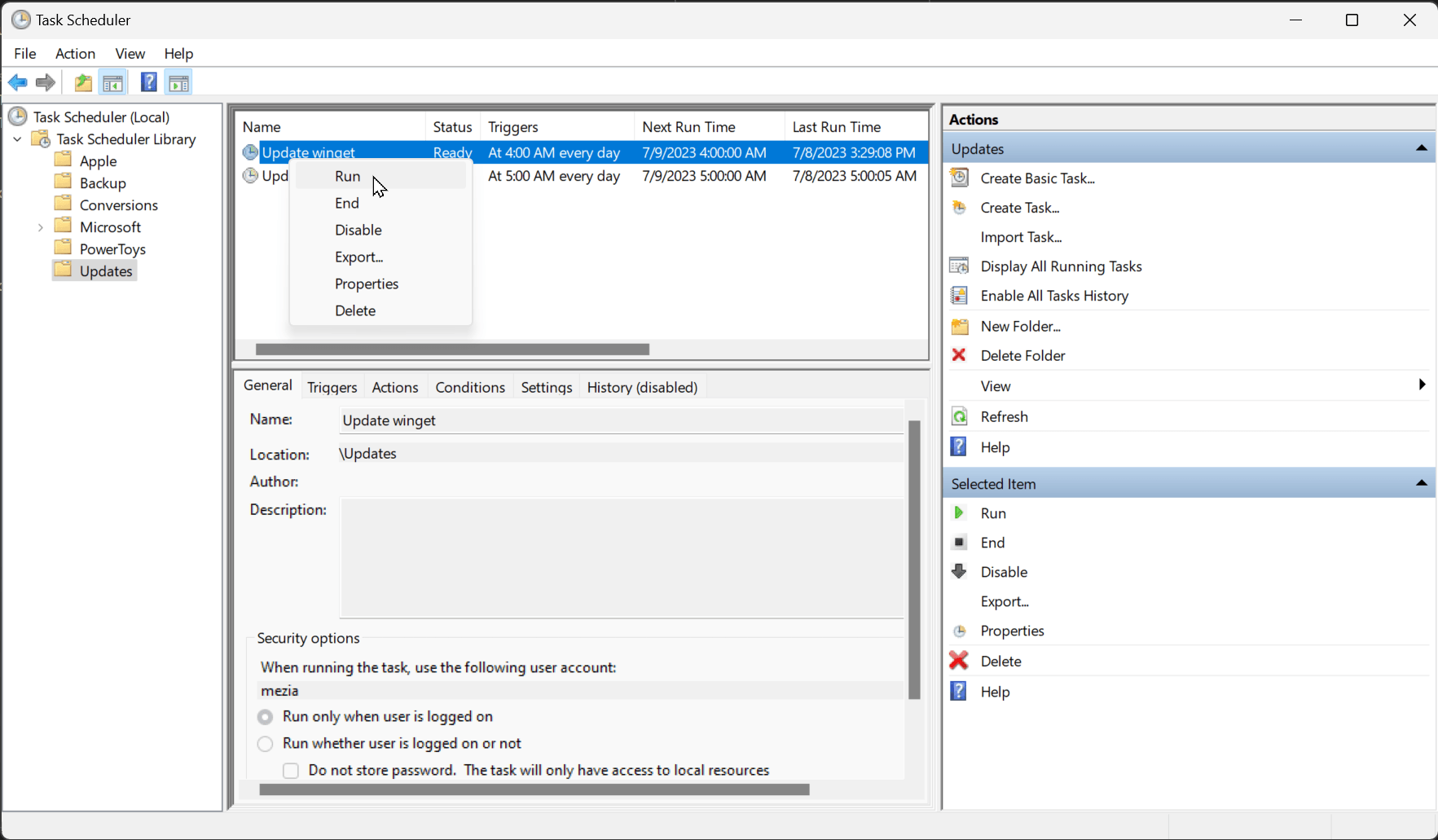
Open Task Scheduler to verify the new task. You can also run it manually to confirm it works as expected.
Do you have a question or a suggestion about this post? Contact me!
