OneDrive for Business differs from personal OneDrive: it is a SharePoint site collection, which means you can use SharePoint features such as versioning. By default, it keeps up to 500 versions of each file. While useful, this can consume a significant amount of storage. For example, a 1.5 MB file with 500 versions occupies 750 MB. When storage is limited, removing old version history is a practical solution.
In a previous post, I explained how to use rclone to backup files. rclone also supports cleaning up old file versions on remotes that support this feature, including OneDrive for Business.
First, you need to download rclone from the website: https://rclone.org/downloads/.
If you already have rclone downloaded, you can update it to the latest version using the following command:
Shell
rclone selfupdate --stable
Then, configure your OneDrive account. This step creates a configuration file containing the details needed to connect to your account.
Shell
rclone config --config rclone.conf
Follow the steps to add a new remote. Once complete, you will have a new configuration file named rclone.conf. You can view the available cloud drives by opening it in a text editor:
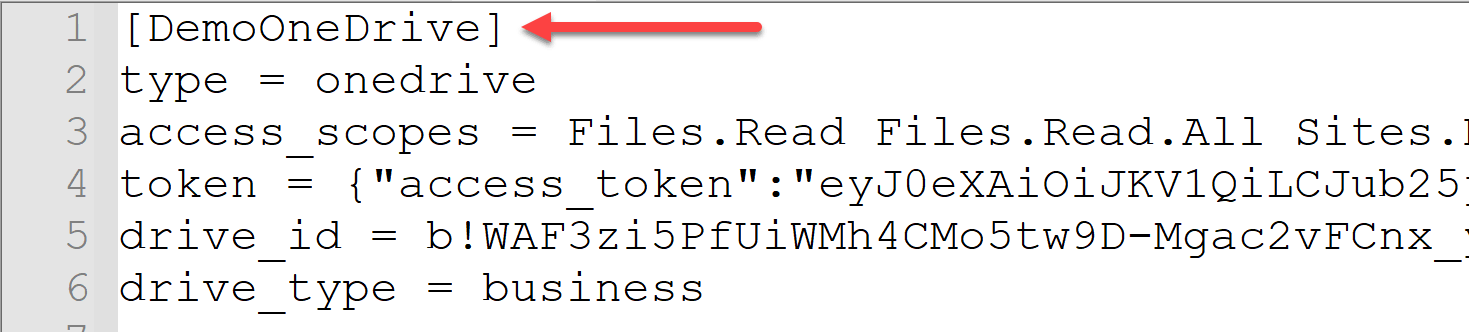
Finally, use the cleanup command to remove the version history of a file. The following command removes all history versions of MyFile.txt:
Shell
rclone cleanup "DemoOneDrive:MyFile.txt" --config rclone.conf --verbose
You can remove the history versions of all files using the following command:
Shell
rclone cleanup "DemoOneDrive:" --config rclone.conf --verbose
You can remove the history versions of all files in a folder using the following command:
Shell
rclone cleanup "DemoOneDrive:Backup/" --config rclone.conf --verbose
Do you have a question or a suggestion about this post? Contact me!
