Many HTML/JavaScript component libraries include built-in rich text editors, which let users enter formatted text (bold, italic, underline, lists, etc.). In this post, we will see how to build one from scratch.
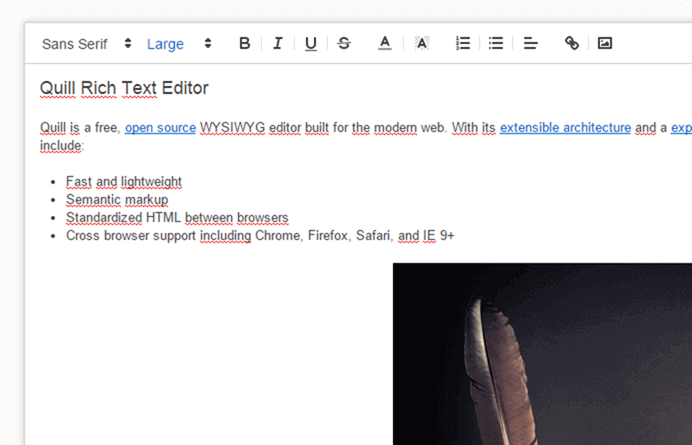
The key is the contenteditable attribute, which can be applied to any HTML element to make it editable.
HTML
<div class="editor" contenteditable="true"></div>
We can use some CSS to define the size of the editable zone:
CSS
.editor {
    min-height: 300px;
    width: 100%;
    border: 1px solid black;
}
The editor works, but formatting is only accessible via keyboard shortcuts. Like any good editor, you will want to add toolbar buttons for the available commands:
HTML
<div class="editor-commands">
    <ul>
        <li><a data-command="undo">Undo</a></li>
        <li><a data-command="redo">Redo</a></li>
        <li><a data-command="insertHorizontalRule">hr</a></li>
        <li><a data-command="bold">Bold</a></li>
        <li><a data-command="italic">Italic</a></li>
        <li><a data-command="underline">Underline</a></li>
        <li><a data-command="strikeThrough">strikeThrough</a></li>
        <li><a data-command="justifyLeft">justifyLeft</a></li>
        <li><a data-command="justifyCenter">justifyCenter</a></li>
        <li><a data-command="justifyRight">justifyRight</a></li>
        <li><a data-command="justifyFull">justifyFull</a></li>
        <li><a data-command="indent">indent</a></li>
        <li><a data-command="outdent">outdent</a></li>
        <li><a data-command="insertUnorderedList">insertUnorderedList</a></li>
        <li><a data-command="insertOrderedList">insertOrderedList</a></li>
        <li><a data-command="html" data-command-argument="h1">h1</a></li>
        <li><a data-command="html" data-command-argument="h2">h2</a></li>
        <li><a data-command="html" data-command-argument="h3">h3</a></li>
        <li><a data-command="html" data-command-argument="p">p</a></li>
        <li><a data-command="subscript">subscript</a></li>
        <li><a data-command="superscript">superscript</a></li>
    </ul>
</div>
To execute a command, use the document.execCommand method:
JavaScript
var commandButtons = document.querySelectorAll(".editor-commands a");
for (var i = 0; i < commandButtons.length; i++) {
    commandButtons[i].addEventListener("mousedown", function (e) {
        e.preventDefault();
        var commandName = e.target.getAttribute("data-command");
        if (commandName === "html") {
            var commandArgument = e.target.getAttribute("data-command-argument");
            document.execCommand('formatBlock', false, commandArgument);
        } else {
            document.execCommand(commandName, false);
        }
    });
}
That's it! Here's the result:Source code of the demo: demo.zip
To retrieve the HTML content, read the innerHTML of the editor element:
JavaScript
var result = document.getElementById("Editor").innerHTML;
#To go further
Many other commands are available, such as changing text color, font size, font family, and inserting links. The supported commands can vary between browsers. You can check whether a command is available using the queryCommandSupported method.
#Useful links
Do you have a question or a suggestion about this post? Contact me!
