The geography type was introduced in SQL Server 2008 R2. It is designed to store and manipulate spatial data, allowing you to represent points, lines, or polygons on the globe and perform calculations such as measuring distances between two points, checking if two areas intersect, and more.
We will build a web application that suggests interesting places near the user's location. These places are displayed on Google Maps as points or areas:
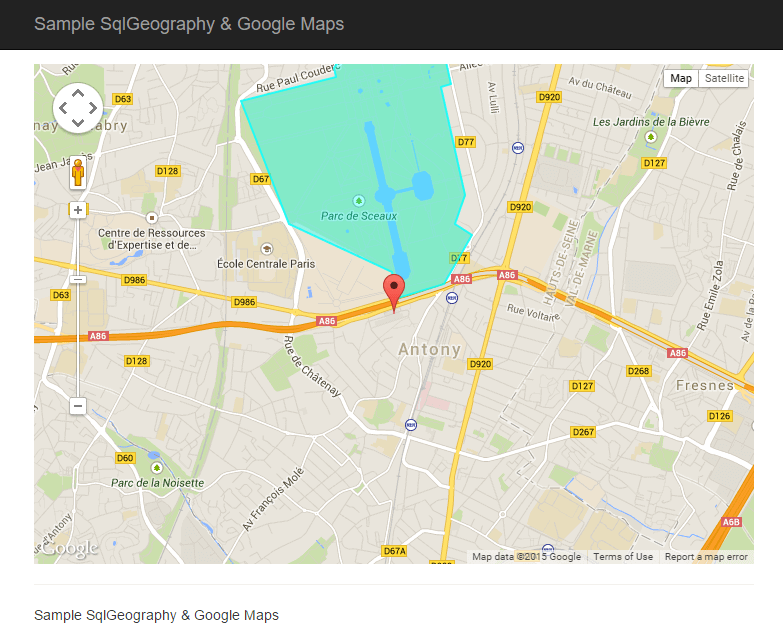
#Creation of the database
The database contains a single table that stores a name, description, and position for each place:
SQL
CREATE TABLE [dbo].[Place] (
    [Id]          [uniqueidentifier] NOT NULL,
    [Name]        [nvarchar] (256) NOT NULL,
    [Location]    [geography] NULL,
    [Description] [nvarchar](256) NULL,
)
Let's add a few rows:
SQL
INSERT [dbo].[Place] ([Id], [Name], [Location], [Description])
VALUES (N'9dcae9a1-67a1-472c-9e4e-84b3aef44159', N'SoftFluent', geography::STGeomFromText('POINT (2.299617 48.761214)', 4326), N'A nice company')

INSERT [dbo].[Place] ([Id], [Name], [Location], [Description])
VALUES (N'584cdd45-6afe-418f-9491-84eefb31b1d0', N'Tour Eiffel', geography::STGeomFromText('POINT (2.294423 48.858399)', 4326), N'The Eiffel tower')

INSERT [dbo].[Place] ([Id], [Name], [Location], [Description])
VALUES (N'dce96053-00a6-47ca-9fe3-36af39b3ae29', N'Parc de sceaux', geography::STGeomFromText('POLYGON ((2.299424 48.763629, 2.299896 48.762158, 2.303898 48.762908, 2.306269 48.765722, 2.304778 48.766309, 2.305666 48.767943, 2.303597 48.774081, 2.304488 48.774222, 2.30334 48.777538, 2.29729 48.776651, 2.297156 48.777022, 2.296544 48.776987, 2.296582 48.776113, 2.2956 48.776333, 2.294425 48.775148, 2.294608 48.774618, 2.286411 48.773253, 2.290579 48.766338, 2.299424 48.763629))', 4326), N'A good place to have a nap')
We also need to create a stored procedure to only select locations close to the user's location:
SQL
CREATE PROCEDURE [dbo].[Place_LoadByDistance]
(
    @Location [geography],
    @maxDistance [float]
)
AS
SET NOCOUNT ON
SELECT [Place].[Id], [Place].[Name], [Place].[Location], [Place].[Description]
FROM [Place]
WHERE (@Location.STDistance([Place].[Location]) < @maxDistance)

RETURN
GO
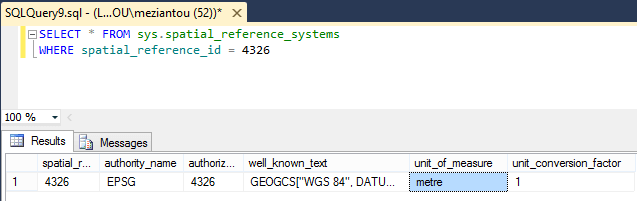
With the geography type, distance calculation is straightforward: regardless of the geometry type (Point, Line, Polygon), you can call the STDistance function. This function returns the distance in meters when using SRID 4326 (as in the three INSERT statements above). You can verify this with the following query:
SQL
SELECT * FROM sys.spatial_reference_systems
WHERE spatial_reference_id = 4326
#Creating the API
The API uses ASP.NET Web API. The main challenge is serializing the SqlGeography type. The simplest approach for our use case (limited to Points and Polygons) is to convert it to a list of latitude/longitude coordinate pairs:
C#
public class PlaceController : ApiController
{
    [HttpGet]
    public IEnumerable<PlaceModel> Get(double latitude, double longitude, double distance)
    {
        SqlGeography location = SqlGeography.Point(latitude.Value, longitude.Value, 4326);
        return PlaceCollection.LoadByDistance(location, distance.Value).Select(point => new PlaceModel(point));
    }
}

public class PlaceModel
{
    public PlaceModel(Place pointOfInterest)
    {
        Name = pointOfInterest.Name;
        Description = pointOfInterest.Description;
        SqlInt32 pointCount = pointOfInterest.Location.STNumPoints();
        Location = new LatitudeLongitude[(int)pointCount];
        for (int i = 0; i < pointCount; i++)
        {
            SqlGeography point = pointOfInterest.Location.STPointN(i + 1); // 1 based index
            Location[i] = new LatitudeLongitude((double)point.Long, (double)point.Lat);
        }
    }

    public string Name { get; }
    public string Description { get; }
    public LatitudeLongitude[] Location { get; }
}

public class LatitudeLongitude
{
    public LatitudeLongitude(double longitude, double latitude)
    {
        Lat = latitude;
        Long = longitude;
    }

    public double Lat { get; }
    public double Long { get; }
}
#Creation of the graphical interface
The first step is to register the application with Google to obtain a public key:
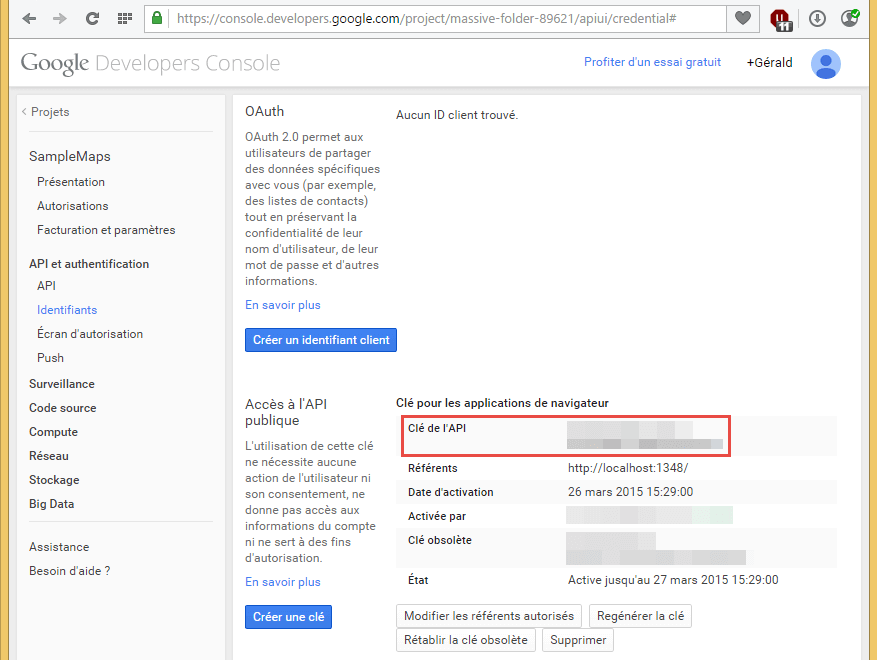
We can then add the script to our page (replace <public key> with your key):
HTML
<script type="text/javascript" src="https://maps.googleapis.com/maps/api/js?key=<public key>"></script>
Then we initialize the map:
HTML
<div id="map-canvas"></div>
<style type="text/css">
    #map-canvas {
        height: 500px;
        margin: 0;
        padding: 0;
    }
</style>

<script type="text/javascript">
    function initialize() {
        var mapOptions = {
            center: new google.maps.LatLng(48.761214, 2.299617),
            zoom: 14
        };
        var map = new google.maps.Map(document.getElementById('map-canvas'), mapOptions);
        }
    }
    google.maps.event.addDomListener(window, 'load', initialize);
</script>
Next, we retrieve the user's position via the Geolocation API:
JavaScript
if (navigator.geolocation) {
    navigator.geolocation.getCurrentPosition(function (position) {
        var req = new XMLHttpRequest();
        req.open('GET', '/api/place?latitude=' + position.coords.latitude + '&longitude=' + position.coords.longitude + '&distance=2000', true);
        req.onreadystatechange = function () {
            if (req.readyState === 4) {
                if (req.status === 200) {
                    var places = JSON.parse(req.responseText);

                    for (var i = 0; i < places.length; i++) {
                        var place = places[i];
                        addPlace(map, place);
                    }

                } else {
                    console.error("Error while loading the page.");
                }
            }
        };
        req.send(null);
    });
}
To add an element to the map, we need to differentiate between a simple point (Marker) and a zone (Polygon). Since clicking a marker does nothing by default, we also attach a popup (InfoWindow) to handle the click event:
JavaScript
function addPlace(map, place) {

    // Popup on click
    var infowindow = new google.maps.InfoWindow({
        content: place.Description
    });

    if (place.Location.length === 1) {
        // Point
        var marker = new google.maps.Marker({
            position: locationToLatLng(place.Location[0]),
            map: map,
            title: place.Name
        });

        google.maps.event.addListener(marker, 'click', function () {
            infowindow.open(map, marker);
        });

    } else {
        // Polygon
        var paths = place.Location.map(locationToLatLng);
        var polygon = new google.maps.Polygon({
            paths: paths,
            map: map,
            strokeColor: '#00FFFF',
            strokeOpacity: 0.8,
            strokeWeight: 2,
            fillColor: '#00FFFF',
            fillOpacity: 0.35,
            title: place.Name
        });

        google.maps.event.addListener(polygon, 'click', function () {
            infowindow.open(map, polygon);
        });
    }
}
#Conclusion
Thanks to the geography data type, Google Maps, and geolocation, it is possible to quickly set up a graphical interface presenting geographic data specific to the user's location.
Do you have a question or a suggestion about this post? Contact me!
