There are many situations where you need to verify that the connection string used by an application is valid (especially in production). The two simplest methods are:
- Create a new file with the
.udl extension (Universal Data Link) - Open the created file => A window to enter the login information opens
- Fill in the connection information
- Click on the "Test connection" button
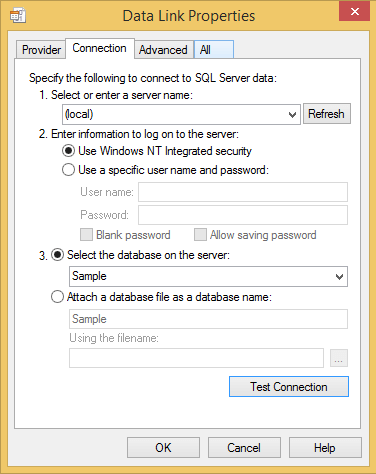
If this option is not available (for example, on Windows Server Core), you can use PowerShell instead:
PowerShell
$conn = New-Object System.Data.SqlClient.SqlConnection
$conn.ConnectionString = "Server=(local);Database=Sample;Integrated Security=True;"
$conn.Open()
$conn.Close()

In case of error, a complete error message is displayed:

#IIS App Pool & SQL Server
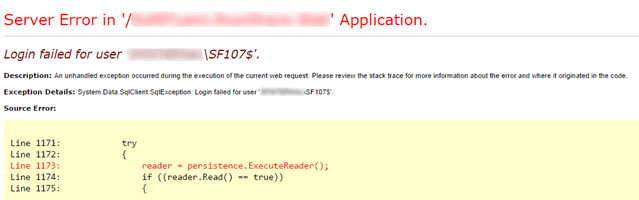
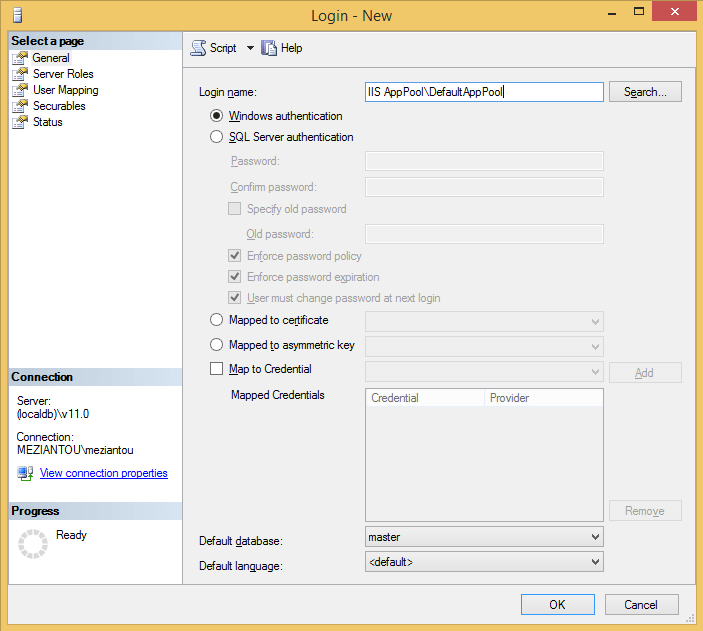
This error occurs when the account running the website cannot connect to the database. Unfortunately, the error message, although accurate, is not very explicit. The account displayed is the machine name followed by the $ sign, but that is not the account you need to authorize in SQL Server. You must add the AppPool account instead:
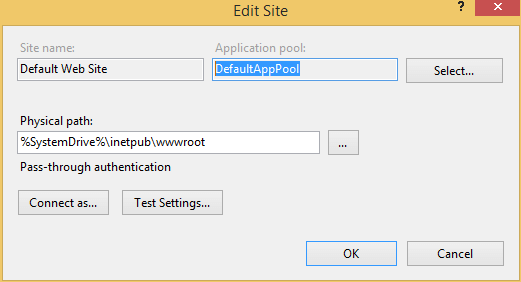
First, identify the application pool used by the site (here "DefaultAppPool"):
The account to add in SQL Server is "IIS AppPool<Application Pool>" (here "IIS AppPool\DefaultAppPool"):
#CodeFluent Entities
CodeFluent Entities provides several ways to define a connection string (see documentation). This makes it easy to work with multiple people on the same project (unlike other competing solutions). For example, the configuration file might look like:
XML
<connectionStrings>
    <add name="DEV01" connectionString="Application Name=Sample;server=(localdb)\v11.0;database=Sample;Integrated Security=true" />
    <add name="DEV02" connectionString="Application Name=Sample;server=(local)\SQL2012;database=Sample;Integrated Security=true" />
    <add name="DEV03" connectionString="Application Name=Sample;server=(local)\SQL208R2;database=Sample;Integrated Security=true" />
    </connectionStrings>

    <Sample connectionString="{%ComputerName%}" />
The connection string used (DEV01, DEV02 or DEV03) depends on the environment variable %ComputerName% (name of the current machine). You can use PowerShell to determine the connection string used at runtime:
PowerShell
# configuration
$dir = "<path to the application>"
$dll = "$dir\bin\<dll name>.dll"
$appConfigPath = "$dir\web.config"
#Load dll
Add-Type -Path "C:\Program Files (x86)\SoftFluent\CodeFluent\Modeler\CodeFluent.Runtime.dll"
Add-Type -Path "$dll"
# Load app.config file
[System.AppDomain]::CurrentDomain.SetData("APP_CONFIG_FILE", "$appConfigPath")
# Get the connection string
[CodeFluent.Runtime.CodeFluentContext]::Get([<Default Namespace>.Constants]::<Store name>).Persistence.ConnectionString
XML
<section name="Sample" type="CodeFluent.Runtime.CodeFluentConfigurationSectionHandler, CodeFluent.Runtime, Version=1.0.0.0, Culture=neutral, PublicKeyToken=1bb6d7cccf1045ec" />
Do you have a question or a suggestion about this post? Contact me!
