This post is part of the series 'Web Performance'. Be sure to check out the rest of the blog posts of the series!
Videos represent a large share of internet traffic, accounting for roughly 80% of all traffic according to Cisco. Reducing video file sizes lowers the amount of data transferred and can also reduce your website's hosting costs.
AV1 is the next-generation codec developed by the Alliance for Open Media (AOM). It improves compression efficiency by ~30% over VP9 and by ~50% over H.264.
AV1 is currently supported by Chrome, Firefox, Opera, and Edge, covering about 75% of browser usage. Apple is expected to add AV1 support in the future.
Because the web supports progressive enhancement, you can provide multiple versions of the same video. This lets you offer both an AV1 and an H.264 version to support all browsers. The browser will pick the best option for the user, so there is no reason not to use AV1 today!
 Can I use: MPEG-4/H.264 video format
 Can I use: AV1 video format
#Encoding videos to AV1
You can use ffmpeg to convert a video to AV1.
Download ffmpeg: https://ffmpeg.org/download.html
Convert the video to AV1:
Shell
# Adjust the crf value to change the quality and size of the video.
# The valid CRF value range is 0-63, with the default being 50.
# Lower values correspond to higher quality and greater file size.
ffmpeg -i input.mp4 -c:v libsvtav1 -crf 50 -b:v 0 -c:a libopus -movflags faststart output.mp4
You can better control the output size using 2-pass encoding:
Shell
# Change -b:v 2M to change the bitrate and control the output size

# Linux
ffmpeg -i input.mp4 -c:v libsvtav1 -b:v 2M -pass 1 -an -f null /dev/null
ffmpeg -i input.mp4 -c:v libsvtav1 -b:v 2M -pass 2 -c:a libopus -movflags faststart output.mp4

# Windows
ffmpeg -i input.mp4 -c:v libsvtav1 -b:v 2M -pass 1 -an -f null NUL
ffmpeg -i input.mp4 -c:v libsvtav1 -b:v 2M -pass 2 -c:a libopus -movflags faststart output.mp4
Documentation for all available AV1 options:
#Updating the <video> element
You now have two video files: one encoded with H.264 and another with AV1. Set both as sources on the <video> element.
Since both videos share the same MIME type video/mp4, the browser cannot determine the best option for the user. The solution is to set the codecs parameter of the MIME type (e.g. video/mp4; codecs="av01.0.04M.08").
HTML
<video>
    <source src="./demo-av1.mp4" type='video/mp4; codecs="av01.0.04M.08"; profiles="isom,av01,iso2,mp41"'>
    <source src="./demo-x264.mp4" type="video/mp4">
</video>
However, the codecs value is not trivial to determine. The first part av01 is constant for AV1. The remaining parts depend on how the file was encoded (documentation), so you will likely need a tool to get the correct value.
##Finding the codecs parameter
To find the value of the codecs parameter, use the following website: https://gpac.github.io/mp4box.js/test/filereader.html:
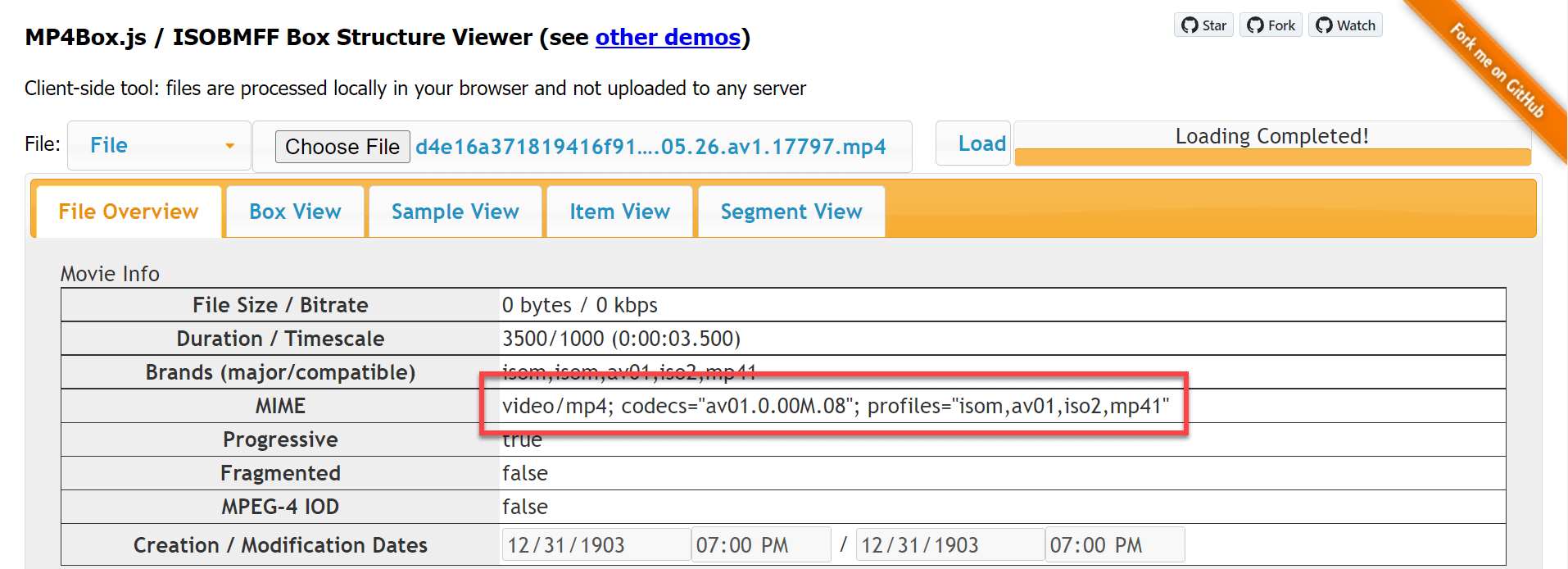
Or use Node.js code to get it:
Shell
npm install mp4box@0.5.2
index.mjs (JavaScript)
import { createFile } from 'mp4box';
import fs from 'fs';

const filePath = process.argv[2];
const content = await fs.promises.readFile(filePath);

let buffer = content.buffer;
buffer.fileStart = 0;

var mp4boxfile = createFile();
mp4boxfile.onError = e => console.error(e);
mp4boxfile.onReady = info => console.log(info.mime);
mp4boxfile.appendBuffer(buffer);
mp4boxfile.flush();
You can now run the script to get the MIME type:
Shell
node index.mjs input.mp4

##Validating that the browser uses the AV1 video
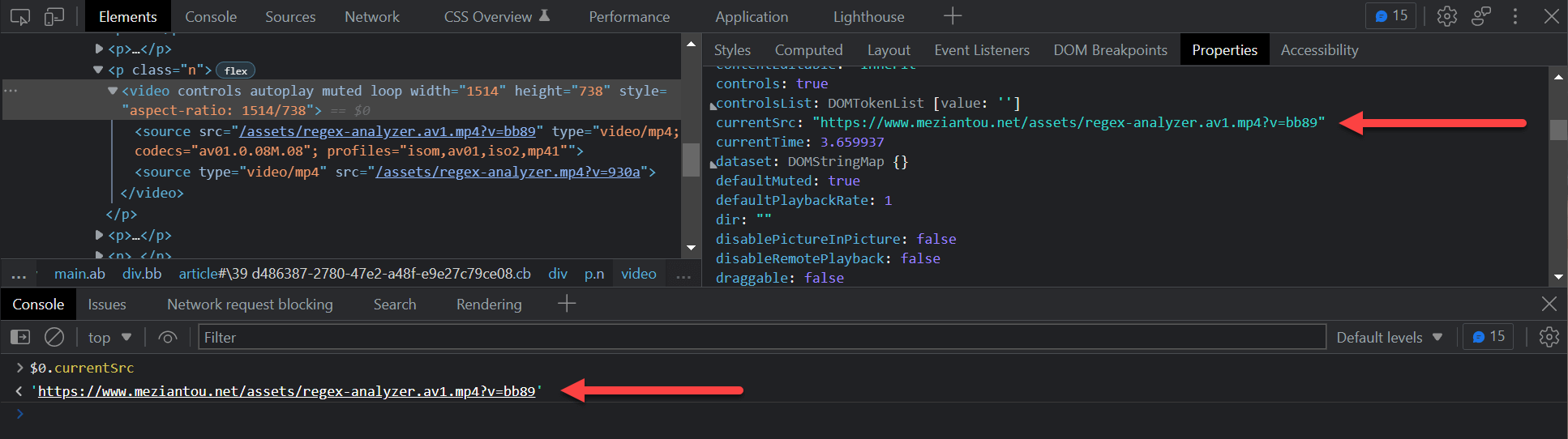
You can verify that your browser is using the right source with the DevTools. The currentSrc property shows the source the browser has selected:
#Microsoft Edge
Microsoft Edge selects the AV1 video but cannot play it unless the AV1 Video Extension is installed. The resulting experience is poor, as most users will not see the video. A possible workaround is to detect Microsoft Edge and remove the AV1 source.
JavaScript
(function () {
    for (let brand of navigator.userAgentData.brands) {
        if (brand.brand == "Microsoft Edge") {
            for (let element of document.querySelectorAll("video>source[type*='av01.']")) {
                let parentElement = element.parentElement;

                // Remove the <source> element
                element.remove();

                // force reload the video, so the browser loads the new sources
                parentElement.load();
            }
        }
    }
})();
#Additional resources
Do you have a question or a suggestion about this post? Contact me!
