If you follow me on Twitter, you may have noticed that I use a cover image for each post. This improves the visibility of my posts in people's timelines.

The image is composed of 3 parts:
- The post categories
- The post title
- The author website and Twitter handle
Manually creating all these images is not an option, and generating images with dynamic text is non-trivial. For instance, the title length varies, which means you need to wrap the text and adjust the font size to fit the available space. Sometimes it fits on one line, sometimes it needs three lines, and sometimes the font size must shrink. On top of that, creating the image template itself is not straightforward.
The solution I chose is to use a PowerPoint slide with editable text areas. PowerPoint makes it easy to create the template: you can add a background image and adjust font sizes and colors, with an immediate visual preview. More importantly, PowerPoint automatically resizes text to fit the designated area, so any title length will fit without manual adjustments.
You can automate PowerPoint using COM, but this requires PowerPoint to be installed and does not work on Linux. Since I generate this static website on GitHub Actions using a Linux Docker image, COM is not an option. Instead, I use Syncfusion to edit the PowerPoint slide and export it as a PNG image. Syncfusion has a free community license for companies and individuals with less than $1 million USD in annual gross revenue and 5 or fewer developers. This is perfect for a personal website like this one.
First, create the template in PowerPoint. The editable areas are named, making them easy to reference from code. Note that the slide must have the correct dimensions to work as a Twitter card. Check the Twitter documentation for the required image size and the PowerPoint documentation to change the size of your slides.
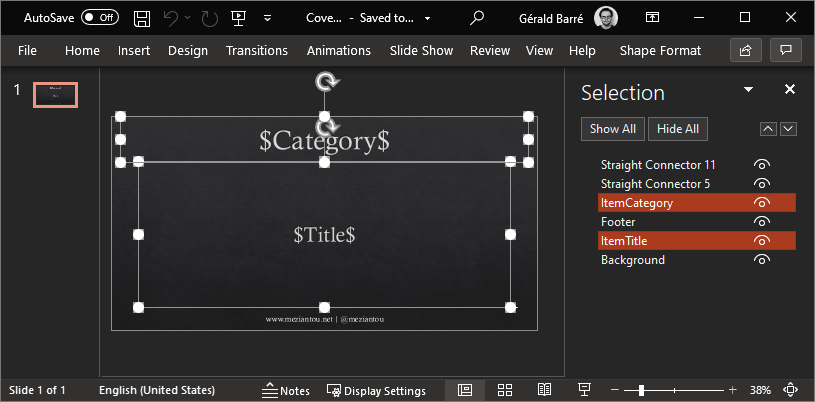
Then, add the following NuGet packages to your project:
csproj (MSBuild project file)
<Project Sdk="Microsoft.NET.Sdk.Web">

  <ItemGroup>
    <PackageReference Include="Syncfusion.Presentation.Net.Core" Version="18.2.0.48" />
    <PackageReference Include="Syncfusion.PresentationRenderer.Net.Core" Version="18.2.0.48" />
  </ItemGroup>

</Project>
Then, you need a few lines of code to edit the slide and convert it to a PNG image.
C#
using Syncfusion.Presentation;
using Syncfusion.PresentationRenderer;

public static async Task Generate(string templatePath, string category, string title, string destinationImagePath)
{
    // Get your license from the syncfusion website
    Syncfusion.Licensing.SyncfusionLicenseProvider.RegisterLicense("...");

    // You can validate the license is valid using the following method.
    // This is common to forget to update the license when updating the syncfusion NuGet packages.
    // Note that when the license is not valid, Syncfusion adds a watermark.
    if (!Syncfusion.Licensing.SyncfusionLicenseProvider.ValidateLicense(Syncfusion.Licensing.Platform.FileFormats, out var message))
        throw new Exception("Syncfusion license is invalid: " + message);

    // Load the PowerPoint file
    using var pptx = Presentation.Open(templatePath);
    pptx.PresentationRenderer = new PresentationRenderer();
    pptx.PresentationRenderer.ExportChartImageOptions.ScalingMode = Syncfusion.OfficeChart.ScalingMode.Best;

    // Edit the category and title areas
    var slide = pptx.Slides[0];
    foreach (var shape in slide.Shapes.OfType<IShape>())
    {
        if (shape.ShapeName == "ItemCategory")
        {
            shape.TextBody.Text = category;
        }
        else if (shape.ShapeName == "ItemTitle")
        {
            shape.TextBody.Text = title;
        }
    }

    // Export the slide to a png image

    // When generating many images in parallel, Syncfusion sometimes fails to write directly to the file.
    // Using an intermediate MemoryStream seems to prevent the error.
    using var pngStream = slide.ConvertToImage(ExportImageFormat.Png);
    using var ms = new MemoryStream();
    await pngStream.CopyToAsync(ms);

    await File.WriteAllBytesAsync(destinationImagePath, ms.ToArray());
}
Note that PowerPoint and Syncfusion may render some things differently. If you notice any rendering issues, feel free to report them to Syncfusion.
Do you have a question or a suggestion about this post? Contact me!
