FontAwesome is a font with just over 500 icons, widely used on the web.
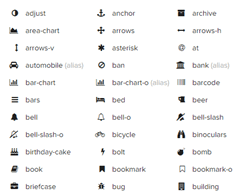
FontAwesome can also be used in WPF applications, and that is exactly what this article covers.
#Step 1: include the font
The first step is to download the font and include the TTF file as a project resource (direct link):
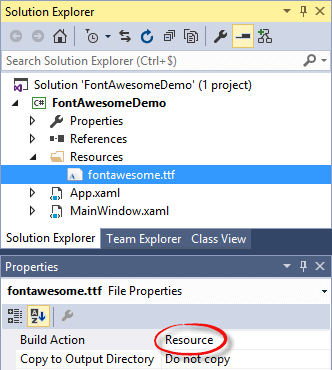
We can now declare the Font in WPF resources:
XAML
<Window ...>
<Window.Resources>
<FontFamily x:Key="FontAwesome">pack://application:,,,/Resources/#fontawesome</FontFamily>
</Window.Resources>
<Grid>
<TextBlock Text="" FontFamily="{StaticResource FontAwesome}" FontSize="60" />
</Grid>
</Window>
That's what this piece of XAML renders:
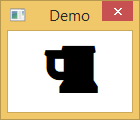
The result works, but using raw Unicode values is not practical since they are not descriptive. The list of name-to-value mappings is available in the Less/Sass variables file (_variables.scss), included in the downloaded zip archive. These variables take the following form:
LESS
@fa-var-adjust: "\f042";
@fa-var-adn: "\f170";
@fa-var-align-center: "\f037";
@fa-var-align-justify: "\f039";
@fa-var-align-left: "\f036";
We will use this file to simplify the use of FontAwesome.
#Step 2: Simplify use with a T4
The idea is to use a T4 file to generate a C# file from the "variables" file. The T4 file is on GitHub:
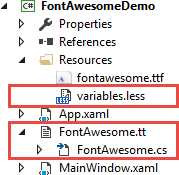
The code generated by the T4 exposes the icon mappings in three different ways:
Using an enumeration
C#
public enum FontAwesomeIconEnum
{
  /// <summary>
  /// fa-adjust icon (f042)
  /// </summary>
  Adjust = 0xf042,
  /// <summary>
  /// fa-adn icon (f170)
  /// </summary>
  Adn = 0xf170,
  ...
}
Using constants
C#
public static partial class FontAwesomeIcons
{
  /// <summary>
  /// fa-adjust icon (f042)
  /// </summary>
  public const string Adjust = "\uf042";
  /// <summary>
  /// fa-adn icon (f170)
  /// </summary>
  public const string Adn = "\uf170";
  /// <summary>
  /// fa-align-center icon (f037)
  /// </summary>
  public const string AlignCenter = "\uf037";
  ...
}
Using a Dictionary
C#
public static partial class FontAwesomeIcons
{
    private static IDictionary<string, string> _allIcons;
    public static IDictionary<string, string> AllIcons
    {
        get { return _allIcons; }
    }

    static FontAwesomeIcons()
    {
        _allIcons = new Dictionary<string, string>(StringComparer.OrdinalIgnoreCase);
        _allIcons.Add("adjust", "\uf042");
        _allIcons.Add("adn", "\uf170");
        _allIcons.Add("align-center", "\uf037");
        _allIcons.Add("AlignCenter", "\uf037");
        ...
    }
}
You can disable any of these depending on your needs by modifying the T4 file:
C#
const bool generateEnum = true;
const bool generateConstants = true;
const bool generateDictionary = true;
This long list of constants can be used directly in XAML:
XAML
<TextBlock Text="{x:Static local:FontAwesomeIcons.Beer}" FontFamily="{StaticResource FontAwesome}"/>
It is therefore much more readable and there is no risk of using an icon that does not exist.
#Step 3: Simplify even more use with a MarkupExtension
In a previous article on enumerations with WPF, I had already introduced the MarkupExtension. This is another opportunity to use this magic weapon to simplify the code:
C#
[MarkupExtensionReturnType(typeof(string))]
public partial class IconExtension : MarkupExtension
{
    public IconExtension()
    {
    }

    public IconExtension(FontAwesomeIconEnum icon)
    {
        Icon = icon;
    }

    [ConstructorArgument("icon")]
    public FontAwesomeIconEnum Icon { get; set; }

    public override object ProvideValue(IServiceProvider serviceProvider)
    {
        return ((char)Icon).ToString();
    }
}
This allows you to use the following XAML code:
XAML
<TextBlock Text="{local:Icon Beer}" FontFamily="{StaticResource FontAwesome}" />
The improvement is minor, but it makes the XAML a bit cleaner.
#Bonus: fa-spin and fa-pulse animations
The CSS class fa-spin makes it possible to create a rotation animation. WPF also supports animations, so it's possible to get the same result as in CSS.
XAML
<TextBlock Text="{local:Icon Spinner}" FontFamily="{StaticResource FontAwesome}" VerticalAlignment="Center" HorizontalAlignment="Center">
    <TextBlock.Style>
        <Style TargetType="TextBlock">
            <Setter Property="RenderTransformOrigin" Value="0.5 0.5"/>
            <Setter Property="RenderTransform">
                <Setter.Value>
                    <RotateTransform Angle="0"/>
                </Setter.Value>
            </Setter>
            <Style.Triggers>
                <EventTrigger RoutedEvent="Loaded">
                    <BeginStoryboard>
                        <Storyboard>
                            <DoubleAnimation Storyboard.TargetProperty="(UIElement.RenderTransform).(RotateTransform.Angle)"
                                From="0"
                                To="360"
                                Duration="0:0:2"
                                RepeatBehavior="Forever"/>
                        </Storyboard>
                    </BeginStoryboard>
                </EventTrigger>
            </Style.Triggers>
        </Style>
    </TextBlock.Style>
</TextBlock>
For fa-pulse, divide the rotation animation into 8 discrete steps (45° each):
XAML
<TextBlock Text="{local:Icon Spinner}" FontFamily="{StaticResource FontAwesome}" VerticalAlignment="Center" HorizontalAlignment="Center">
    <TextBlock.Style>
        <Style TargetType="TextBlock">
            <Setter Property="RenderTransformOrigin" Value="0.5 0.5"/>
            <Setter Property="RenderTransform">
                <Setter.Value>
                    <RotateTransform Angle="0"/>
                </Setter.Value>
            </Setter>
            <Style.Triggers>
                <EventTrigger RoutedEvent="Loaded">
                    <BeginStoryboard>
                        <Storyboard>
                            <DoubleAnimationUsingKeyFrames Storyboard.TargetProperty="(UIElement.RenderTransform).(RotateTransform.Angle)"
                                    Duration="0:0:1"
                                    RepeatBehavior="Forever">
                                <DiscreteDoubleKeyFrame Value="45" KeyTime="Uniform"/>
                                <DiscreteDoubleKeyFrame Value="90" KeyTime="Uniform"/>
                                <DiscreteDoubleKeyFrame Value="135" KeyTime="Uniform"/>
                                <DiscreteDoubleKeyFrame Value="180" KeyTime="Uniform"/>
                                <DiscreteDoubleKeyFrame Value="225" KeyTime="Uniform"/>
                                <DiscreteDoubleKeyFrame Value="270" KeyTime="Uniform"/>
                                <DiscreteDoubleKeyFrame Value="315" KeyTime="Uniform"/>
                                <DiscreteDoubleKeyFrame Value="360" KeyTime="Uniform"/>
                            </DoubleAnimationUsingKeyFrames>
                        </Storyboard>
                    </BeginStoryboard>
                </EventTrigger>
            </Style.Triggers>
        </Style>
    </TextBlock.Style>
</TextBlock>
The full code is available on GitHub: https://github.com/meziantou/WPFFontAwesome
Do you have a question or a suggestion about this post? Contact me!
