In the previous post, we saw how to use drag & drop and copy/paste to upload files and directories. However, most users now store their files in the cloud (Microsoft OneDrive, Google Drive, Dropbox, etc.). Allowing users to pick files directly from their cloud storage can greatly improve the experience.
Let's see how to integrate the OneDrive File Picker into a website!
 OneDrive File Picker
#Registering the application
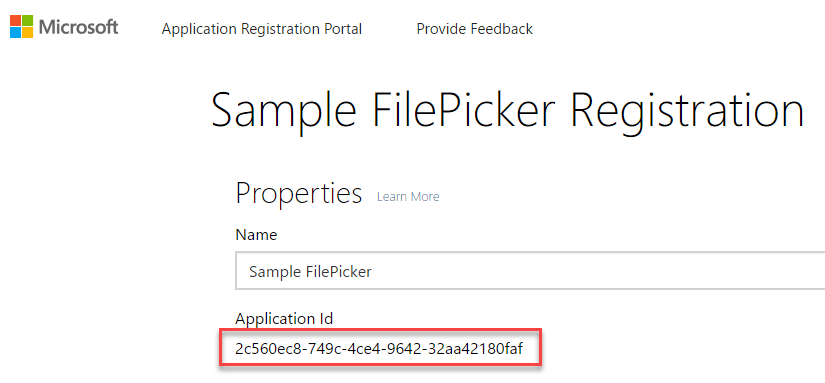
First, you need to register your application to get the Application Id.
Navigate to https://apps.dev.microsoft.com and click the "Register App" button. Follow the steps, and you'll get your Application Id:
#Adding the file picker
First, you must add the SDK and a button to open the file picker:
HTML
<script type="text/javascript" src="https://js.live.net/v7.0/OneDrive.js"></script>
<button id="OpenOneDrive" type="button">Open from OneDrive</button>
The SDK provides one function to open the file picker: OneDrive.open
TypeScript
const oneDriveApplicationId = "INSERT YOUR APPLICATION ID";

function launchOneDrivePicker() {
    return new Promise<OneDriveResult | null>((resolve, reject) => {
        var odOptions: OneDriveOpenOptions = {
            clientId: oneDriveApplicationId,
            action: "download",
            multiSelect: true,
            openInNewWindow: true,
            advanced: {
                //filter: "folder,.png" // Show only folders and png files
                //filter: "folder,photo" // Show only folders and photos
            },
            success: function (files) { resolve(files); },
            cancel: function () { resolve(null); },
            error: function (e) { reject(e); }
        };

        OneDrive.open(odOptions);
    });
}
Then, you can bind the click event of the button:
TypeScript
document.getElementById("OpenOneDrive").addEventListener("click", e => {
    e.preventDefault();
    launchOneDrivePicker()
        .then(result => {
            if (result) {
                for (const file of result.value) {
                    const name = file.name;
                    const url = file["@microsoft.graph.downloadUrl"];
                    console.log({ name: name, url: url });
                }
            }
        }).catch(reason => {
            console.error(reason);
        });
});
Note: TypeScript type definitions are available in this gist: https://gist.github.com/meziantou/c7d86fd6be049257ef46984459fc8629
#Downloading the file
Once you get the file URL, you can easily download the file in JavaScript:
TypeScript
fetch(url)
    .then(response => response.blob())
    .then(blob => {
        // TODO do something useful with the blob

        // For instance, display the image
        const url = URL.createObjectURL(blob);
        (<HTMLImageElement>document.getElementById("preview")).src = url;
    });
You can also send the link to the server and let the server download it.
#Conclusion
The OneDrive File Picker is easy to integrate into a web application.
The full documentation: https://dev.onedrive.com/sdk/js-v72/js-picker-open.htm
Do you have a question or a suggestion about this post? Contact me!
