As a developer or administrator, you frequently rely on the Windows Console. Prior to Windows 10 and Windows Server 2016, it had significant limitations, most notably the 80-column restriction. Microsoft has since addressed these issues: the console now supports wider layouts and common shortcuts such as Ctrl+C and Ctrl+V. Here are some tips to help you get the most out of it.
#Quickly open a cmd from the explorer
To open a console in a specific directory without navigating with cd, type cmd directly in the Explorer address bar and press Enter. You can focus the address bar by pressing Ctrl+L.
 Open Windows Console
You can also replace cmd with powershell, pwsh (PowerShell Core) or wt (Windows Terminal) 😉
#Change the transparency (Ctrl+Shift+Mouse wheel)
You can adjust the transparency of the console using Ctrl+Shift+Mouse wheel or Ctrl+Shift++ and Ctrl+Shift+-. This lets you see through to windows behind the console, which is handy when referencing information while typing commands.
#Full Screen (F11)
If you are working exclusively in the console, such as on Windows Server Core, you can go full screen using F11 or Alt+Enter. This will make your Windows look like Linux 😃
 Windows Console fullscreen
#Commands history on cmd (F7)
Retyping commands is time-consuming. The console keeps a history of all executed commands so you can reuse them later. Cycling through history with the up and down arrow keys works, but you may not always remember the exact order. The console also provides a visual history panel that makes browsing previous commands much easier. You can open it with F7.
 Windows Console history
#Commands history on PowerShell (F7)
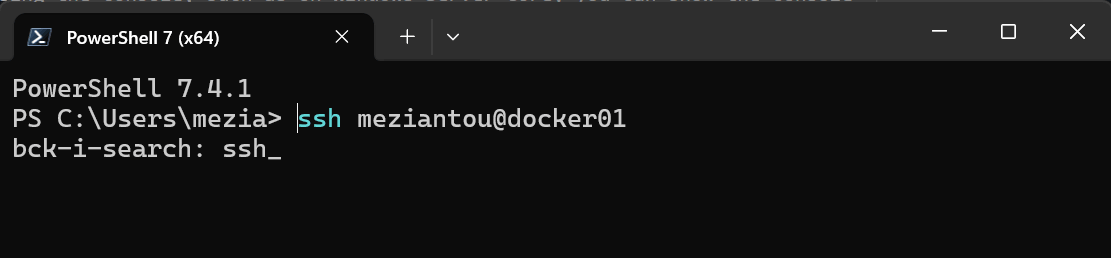
PowerShell lets you search previous commands using Ctrl+R. Beyond that, you can use the PSReadLine module to autocomplete commands from your history as you type.
PowerShell
Install-Module -Name PSReadLine -AllowClobber -Force
Set-PSReadLineOption -PredictionSource History

#Find text (Ctrl+F)
Sometimes you need to search through the output of a command. Reading through the entire output works, but it becomes impractical when the output is long. Like most applications, the console supports text search with Ctrl+F.
 Windows Console find
#Copy the output of a command to the clipboard
You can use the clip command to redirect command output to the Windows clipboard:
Shell
echo toto | clip
You can also copy the contents of a file to the clipboard:
Shell
clip < file.txt
#Pipe commands between Windows and Linux
Shell
dir | wsl grep ts
wsl ls | find /i "ts"
Do you have a question or a suggestion about this post? Contact me!
